Scan QR Codes with Your Camera in a Web Browser
Open the browser camera, read a printed QR code, and review its contents. Learn how to handle camera permissions, stop scanning, and use an image fallback.
QR Code Reader
Scan QR codes with your camera, upload an image, or paste a screenshot.
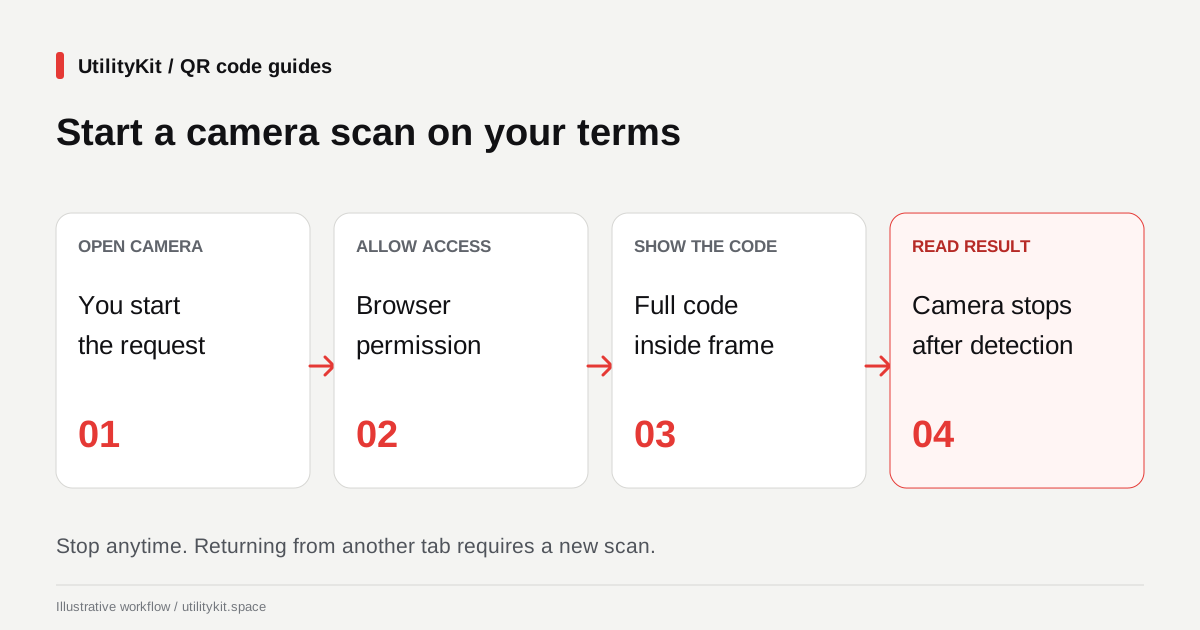
To scan a printed QR code in the browser, open the QR Code Reader, choose Camera, and select Open camera. Allow camera access when prompted, hold the full code inside the frame, and read the decoded information. The camera stops after a successful scan.
The tool is free to use without an account. It can help inspect a code on a package, sign, or printed proof while keeping the decoded text visible for review. If the code is already saved on the same device, uploading or pasting the image is usually more direct.

Start with a simple test code
For a first test, use the QR Code Generator to create a plain-text code containing CAMERA-CHECK-01. Print it or display it on another screen. A known payload makes it easier to distinguish successful decoding from an unexpected destination.
- Open the reader on the device whose camera you want to use.
- Select Camera, then Open camera.
- Respond to the browser's permission prompt.
- Position the full code within the visible scan area.
- Keep the camera steady while it looks for a code.
- Confirm that Decoded information contains
CAMERA-CHECK-01.
Move closer or farther away until the pattern is sharp rather than filling the frame with a blurred code. Keep the clear outer border visible. For a glossy label, changing the angle or lighting can help remove reflections.
The reader asks the browser to prefer a rear-facing camera where available. The current interface does not include a camera-selection menu, zoom control, or flashlight button. Available hardware and the browser's device choice affect the actual preview.
Allow camera access for this site
Browser camera access requires permission and a secure context. For a hosted site, use its HTTPS address. MDN's camera API documentation describes these requirements and the additional policy rules for cameras inside embedded pages.
If you previously blocked access, choosing Open camera again may not display another prompt. Review the site's camera permission in the browser's site settings, change it if appropriate, and retry. Also check operating-system privacy controls if the browser itself has no camera access.
There is no single settings path that applies to every browser and device. Use the permission controls for the browser you are actually running, and prefer opening the tool directly rather than inside another application's embedded browser when access is restricted.
Match the message to the next step
| What the reader reports | What to check |
| Camera access was blocked | Site permission, browser permission, and device privacy settings |
| No camera was found | Whether a camera is connected, available, and enabled |
| The camera could not start | Other apps using the camera; then retry |
| The camera disconnected | Reconnect or enable it and start again |
| It is still looking for a code | Focus, lighting, distance, and the complete visible border |
These messages narrow down what to try; they do not identify every hardware or browser problem. If the preview works but a particular code remains unreadable, follow the QR image troubleshooting guide rather than repeatedly changing permissions.
You can select Stop camera while scanning, or Cancel camera request while waiting for access. If an earlier permission request finishes after you cancel it, the implementation releases the resulting camera stream instead of starting an unwanted scan.
Know when the camera session ends
The reader releases its camera stream after detection, when you stop it, when you change input methods, when the page becomes hidden, and when you leave the tool. Returning to the page does not automatically restart the session; choose Open camera again when ready.
This means each successful scan produces one result. The tool does not keep a continuous scan log or append rows to an inventory. Copy the result you need before starting another scan, which clears the previous output.
For a recognized website address, Open link is a separate action. Detection alone does not open the page. Check the visible address and whether it is the destination you intended to read.
Use an image when camera access is impractical
If the camera is unavailable, take a clear photo using an application that can access it, then choose Upload image in the reader. You can also paste a copied image. Camera permission is not required for those decoding paths.
The reader processes camera frames in the browser and does not create a stored scan history. Website hosting and advertising services still make their own requests; the privacy policy describes that distinction.
Last reviewed: October 29, 2026. Camera decoding and stream cleanup were tested with simulated browser video. Focus, physical camera behavior, and permission prompts still vary by device.
Frequently Asked Questions
Quick answers to common questions for users and search assistants
Does opening the reader immediately turn on my camera?
Why did scanning stop when I switched tabs?
Related Utilities Mentioned in This Guide
Browse directoryContinue Reading
QR Code Not Scanning? Find the Cause and Fix It
Troubleshoot unreadable QR codes by checking the original image, crop, contrast, camera access, and printed proof. Separate decoding failures from broken links.
Organize Bulk QR Code Downloads for Product Labels
Match bulk QR filenames to the right products using the ZIP manifest, choose PNG or SVG, and check a printed proof before producing a full label batch.