Organize Bulk QR Code Downloads for Product Labels
Match bulk QR filenames to the right products using the ZIP manifest, choose PNG or SVG, and check a printed proof before producing a full label batch.
QR Code Generator
Create individual or bulk QR codes and download PNG, SVG, or a ZIP archive.
Keep a bulk QR download together with its source list and manifest.json. The filenames tell you which input line produced each image; the manifest tells you what that image contains. Using both helps prevent a readable QR code from being placed on the wrong product label.
The QR Code Generator creates individual images, not a finished label sheet. This guide covers the handoff from its free bulk export to your own label or page-layout software. If you have not generated a batch yet, start with creating QR codes from a list.

Understand the filename mapping
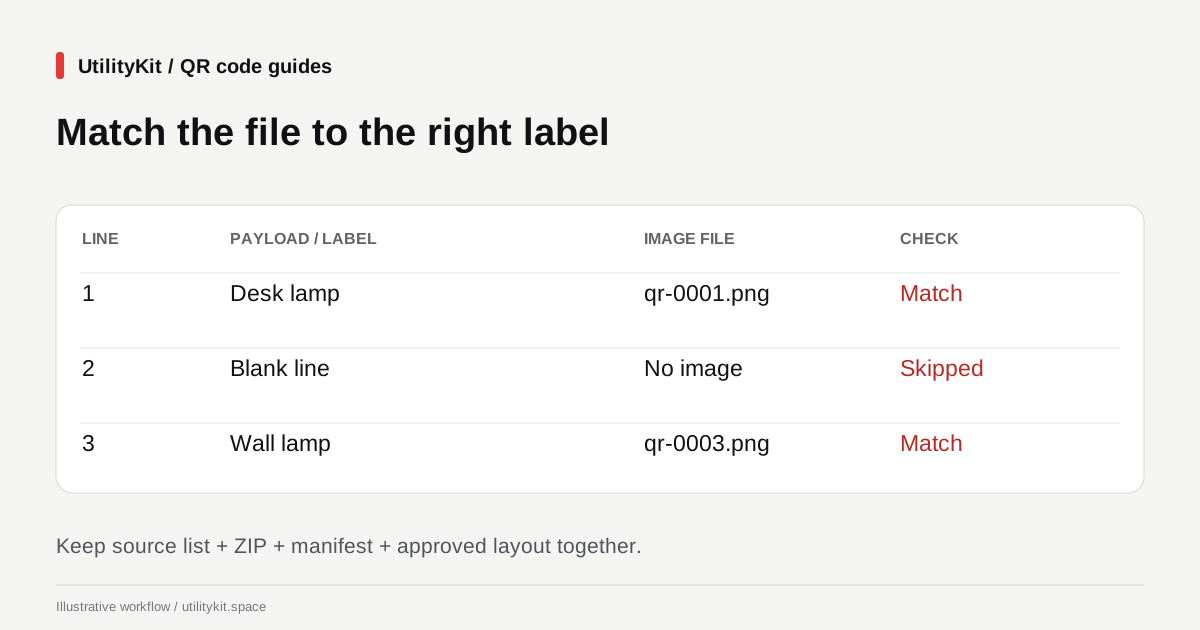
Suppose your source list has a blank line between two addresses:
https://example.com/products/desk-lamp

https://example.com/products/wall-lamp
The successful files are numbered by source line:
| Source line | Intended label | PNG filename |
| 1 | Desk lamp | qr-0001.png |
| 2 | Blank line, skipped | No file |
| 3 | Wall lamp | qr-0003.png |
A gap is not automatically a missing download. A blank line creates no QR code; an invalid entry creates an error instead of an image. Review the batch summary and manifest to distinguish those cases.
Duplicate payloads get separate numbered files. The images may encode identical information, but each still corresponds to its own input line.
Read the manifest before renaming files
After extracting a PNG ZIP, open manifest.json in a text editor. A successful entry looks like this:
{
  "line": 3,
  "payload": "https://example.com/products/wall-lamp",
  "file": "qr-0003.png"
}
An unsuccessful entry has an error message instead of a file property. It does not create a placeholder image. The overall manifest is a list of these records, including failures; it is not just a list of downloadable files.
Create a small working table with the product identifier, visible caption, source line, and exported filename. Check that the payload matches the product before renaming an image to something like wall-lamp-qr.png. If you rename files, update your working table too: the original manifest continues to refer to the original filenames.
Keep different batches in separate folders. Two batches can both contain qr-0001.png, and extracting them into the same directory can cause confusion or an overwrite prompt. A folder such as lamp-labels-2026-10-29 is more informative than a pile of numbered images in Downloads.
Choose PNG or SVG for the next application
| Export | Useful when | Check before placing it |
| PNG | Your label software expects a raster image | The exported pixel dimensions are sufficient at the intended size |
| SVG | Your design software accepts vector artwork | Import preserves the square shape, colors, and surrounding margin |
PNG exports offer 256, 512, or 1024 pixels per side. Enlarging a small raster image in another application does not add detail. SVG is scalable, but confirm that your receiving application imports it correctly rather than assuming every label tool supports it.
The download format selector changes individual downloads and the ZIP contents. It does not generate a combined PDF, a spreadsheet, captions, or a print sheet. Those layout steps happen in your chosen application.

Protect the border during layout
Do not crop the image tightly to its dark pattern to make it fit a smaller label. A regular QR code needs a clear border four modules wide on every side, as described in DENSO WAVE's QR margin guidance. A module is one small square in the pattern, so this is not a fixed four-pixel border at every size.
Bulk exports include that margin. Preserve it when adding captions, background panels, or a cutting outline. Keep the QR square proportional rather than stretching it to fill a rectangular box.
Check the image, the label, and the destination
Before producing the batch, make three separate checks:
- Upload an exported file to the QR Code Reader and compare its decoded content with the manifest.
- Print a proof at the actual label size and scan the physical copy under the intended lighting.
- Confirm that the decoded address belongs to the product named on that label and opens the intended page.
A digital image test cannot reveal glare, poor print quality, or a caption placed too close to the code. A successful physical scan still cannot tell you whether the label belongs on the right box. For a small batch, verify every label; for a larger production run, use a documented checking process that covers all product-to-file assignments.
Save the approved layout, source list, ZIP, and mapping table together. If the encoded destination itself changes, generate a replacement code. These exports do not include a managed service for editing a printed code's destination later.
Last reviewed: October 29, 2026. Filename and manifest behavior were checked against the bulk export implementation. The product names and addresses are illustrative.
Frequently Asked Questions
Quick answers to common questions for users and search assistants
Why does my ZIP skip a filename number?
Does the bulk generator make a printable label sheet?
Related Utilities Mentioned in This Guide
Browse directoryContinue Reading
Create Bulk QR Codes Free from a List of URLs or Text
Turn a pasted list or text file into up to 100 QR codes free, without an account. Review failed entries and download PNG or SVG files together in a ZIP.
QR Code Not Scanning? Find the Cause and Fix It
Troubleshoot unreadable QR codes by checking the original image, crop, contrast, camera access, and printed proof. Separate decoding failures from broken links.