QR Code Not Scanning? Find the Cause and Fix It
Troubleshoot unreadable QR codes by checking the original image, crop, contrast, camera access, and printed proof. Separate decoding failures from broken links.
QR Code Reader
Scan QR codes with your camera, upload an image, or paste a screenshot.
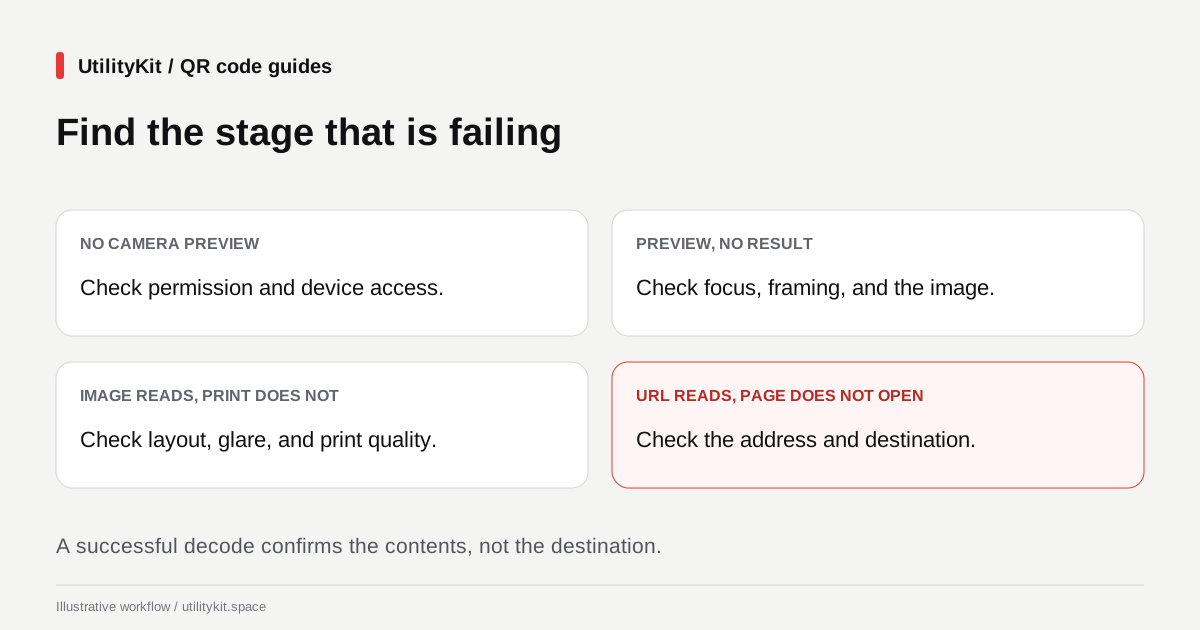
When a QR code will not scan, first determine whether the problem is camera access, the code image, or the decoded destination. A camera that never opens needs a different fix from a blurred screenshot. A code that decodes to a broken web address has already passed the image-reading step.
Use the QR Code Reader to inspect the result without automatically opening a link. Work through the checks below one at a time so you can tell which change helped.

Compare the original file with the captured version
Suppose a label fails when viewed through your camera. Upload the original exported PNG to the reader first, if you have it.
| Test result | Useful next check |
| Original image decodes; photo does not | Lighting, focus, reflections, framing, or print quality |
| Original image decodes; screenshot does not | Screenshot resolution, scaling, or a cropped border |
| Neither original nor captured image decodes | File integrity, contrast, pattern damage, or source generation |
| Decoded text appears, but a link fails | The address and destination, independently of the image |
This comparison helps isolate the failing stage. It is not proof that every original image is valid or that every camera issue is optical. If you do not have the original, ask the source for a clearer copy before spending time enlarging an already blurred thumbnail.
Keep the entire pattern and its border
A QR code tightly cropped against its dark squares may be difficult to locate. Regular QR codes require a clear margin four modules wide on all sides; DENSO WAVE's margin guide explains that requirement. Preserve the border in screenshots, image crops, and page layouts.
When a code is tiny inside a large slide, crop closer to remove unrelated content, but leave that margin intact. Avoid cutting off a corner or squeezing a square image into a narrow rectangle.
If several codes are visible, crop and read them separately. UtilityKit's reader returns one code per scan. A result from one part of a collage is not evidence that all of its other codes were checked.

Improve sharpness and contrast
Start with the original PNG or SVG when possible. Saving a small image repeatedly through messaging apps or screenshots can leave a pattern with blurred or compressed edges. Merely making the final file larger does not recreate missing detail.
For a printed code, try steady framing, a different distance, and lighting that does not produce a bright reflection across the pattern. Check whether the print itself is smudged, faded, or placed across a fold.
If you control the source, regenerate a sample with the generator's default dark foreground and white background. Keep logos, captions, and decorative artwork outside the code. This gives you a simpler comparison than changing several design variables at once.
Distinguish a file error from a missing code
The reader's unreadable-image message can also appear when the browser cannot load the selected image. Try opening the file in an image application and exporting a fresh PNG or JPEG. Changing the filename extension alone does not convert it.
Image uploads are limited to 20 MB. Reduce an oversized file carefully or crop unrelated content while keeping the complete QR code readable. A file below the limit can still be too blurry, corrupted, or otherwise unsuitable for decoding.
For pasted input, confirm that the clipboard holds an image rather than its web address. The screenshot and clipboard guide explains both input paths and their fallbacks.
Fix access before changing a working code
If the camera preview never starts, use the error message to check permission, camera availability, or another application using the device. The browser camera guide covers those steps.
If the preview starts and stays active, the reader is still searching. Keep the full code in the frame and improve the image conditions. Scanning ends after a successful result, so a stopped camera with decoded information is expected behavior.
Check the payload after decoding succeeds
For a website QR, inspect the displayed hostname and path. A missing page, unexpected redirect, or access requirement belongs to the destination workflow. The reader does not verify that a page is available or that a code was supplied by the organization you expect.
For plain text, compare the exact value, including meaningful spaces. For a Wi-Fi payload, check the network name and credentials against the intended configuration; displaying those fields does not itself join a network.
If the encoded value is wrong and you own the source, correct it and regenerate the QR. For a bulk job, check the corresponding manifest record and label assignment as well. A correct code placed on the wrong label still sends the user to the wrong information.
Before printing replacements, test the exported file and a physical proof at the final size. Keep the version that passed those checks. This produces a more useful outcome than repeatedly trying the same unreadable image under unchanged conditions.
Last reviewed: October 29, 2026. Tool messages and limits were checked against the current implementation. Capture and print checks are troubleshooting steps, not a guarantee of recovery.
Frequently Asked Questions
Quick answers to common questions for users and search assistants
Can the reader repair a damaged QR code?
My QR code decodes, but its website does not open. Is the image broken?
Related Utilities Mentioned in This Guide
Browse directoryContinue Reading
Organize Bulk QR Code Downloads for Product Labels
Match bulk QR filenames to the right products using the ZIP manifest, choose PNG or SVG, and check a printed proof before producing a full label batch.
Scan a QR Code from a Screenshot or Pasted Image
Read a QR code already on your device by uploading a screenshot or pasting an image. Copy decoded text and inspect links without using a second camera.