Scan a QR Code from a Screenshot or Pasted Image
Read a QR code already on your device by uploading a screenshot or pasting an image. Copy decoded text and inspect links without using a second camera.
QR Code Reader
Scan QR codes with your camera, upload an image, or paste a screenshot.
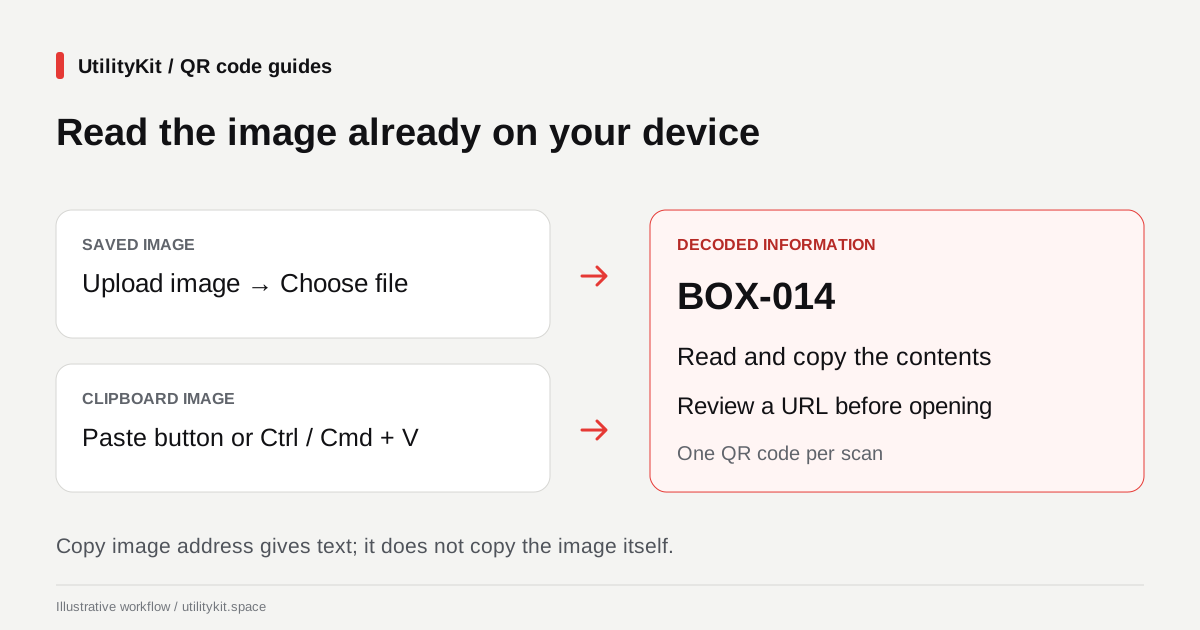
If a QR code is already visible on your device, save a screenshot and upload it to the free QR Code Reader, or paste the image from your clipboard. You do not need to point a second phone at the screen. The reader decodes the image and displays the contents without automatically opening a link.
This is useful for a QR code in a presentation, an emailed flyer, or an image you generated yourself. No account is required. Start with the original image when it is available; otherwise, capture a clear screenshot showing the full code and its surrounding border.
Choose upload or paste
| What you have | Input method | What to do |
| A saved screenshot or downloaded image | Upload image | Choose the file from your device |
| An image copied to the clipboard | Paste image | Use the clipboard button or keyboard paste |
| Only a text link to an image | Save or capture the image first | An image address is not image data |
The reader accepts image files up to 20 MB. PNG and JPEG are practical choices for screenshots and photos; WebP and SVG are also supported when the browser can load them. A filename ending in .png does not make a damaged or unsupported file into a PNG. Re-export it from an image application if necessary.
Upload a saved screenshot
- Open the reader and choose Upload image.
- Under Select a QR image, choose your screenshot.
- Wait for the reading status to finish.
- Read Decoded information and compare it with what you expected.
- Use Copy original text if you need the result elsewhere.
For a reproducible example, create a plain-text code containing BOX-014 with the QR Code Generator. Download its PNG and upload that file to the reader. The decoded text should be BOX-014, with no need for a website visit or camera permission.
The result identifies its source filename. If you scan several saved images in succession, use that source label to confirm which file produced the displayed result.
Paste an image from the clipboard
Choose Paste image, then select Paste from clipboard. If the browser asks for clipboard permission, allow it for this action. Alternatively, click the paste area and press Ctrl+V on Windows or Command+V on Mac.
The button depends on the browser's clipboard API and permissions. MDN's clipboard documentation explains that reading clipboard data requires a secure context and can be denied. Keyboard paste or selecting a saved image provides another route when the button is unavailable.
If the tool says the clipboard contains no image, check what you copied. Copy image address generally gives you a text URL. A screenshot shortcut may save a file rather than place an image on the clipboard. Upload that saved file, or use an image-copy action and try again.
On a device where keyboard paste is inconvenient, selecting the screenshot through Upload image is often the simplest path.
Read the contents before taking the next action
The output can be text, a website address, Wi-Fi details, JSON, or another QR payload. Recognized Wi-Fi codes show fields such as network and password. JSON objects and arrays are formatted for readability, while Copy original text keeps the original encoded string.
Only HTTP and HTTPS destinations receive an Open link action. Email, telephone, and other payloads remain readable text in this tool. Displaying a Wi-Fi code does not automatically connect the device to that network.
Review the address before opening it. The reader reports what the QR contains; it does not certify the destination or verify the sender of a flyer. If an unexpected domain appears, check with the source through a channel you already trust.
Improve an unreadable screenshot
Try a closer crop when the QR is a tiny part of a large slide, but leave the entire code and its clear border intact. If several QR codes appear, crop each separately: the reader returns one result per scan, not a batch inventory.
Avoid repeatedly resizing or recompressing the same small image. Obtain the original file if the screenshot has blurred edges or missing squares. For a step-by-step diagnosis, use the unreadable QR troubleshooting guide.
Image decoding happens in the browser, and the reader does not keep a scan history. Copy a result you need before reloading or leaving the page. Local decoding is separate from the website's hosting and advertising activity, described in the privacy policy.
Last reviewed: October 29, 2026. Upload, clipboard-image, and keyboard-paste event paths were checked against the implementation and browser tests; operating-system clipboard behavior varies.
Frequently Asked Questions
Quick answers to common questions for users and search assistants
Can I paste the address of an image instead of the image itself?
Will it read every QR code in a screenshot?
Related Utilities Mentioned in This Guide
Browse directoryContinue Reading
Create Bulk QR Codes Free from a List of URLs or Text
Turn a pasted list or text file into up to 100 QR codes free, without an account. Review failed entries and download PNG or SVG files together in a ZIP.
QR Code Not Scanning? Find the Cause and Fix It
Troubleshoot unreadable QR codes by checking the original image, crop, contrast, camera access, and printed proof. Separate decoding failures from broken links.