Create Bulk QR Codes Free from a List of URLs or Text
Turn a pasted list or text file into up to 100 QR codes free, without an account. Review failed entries and download PNG or SVG files together in a ZIP.
QR Code Generator
Create individual or bulk QR codes and download PNG, SVG, or a ZIP archive.
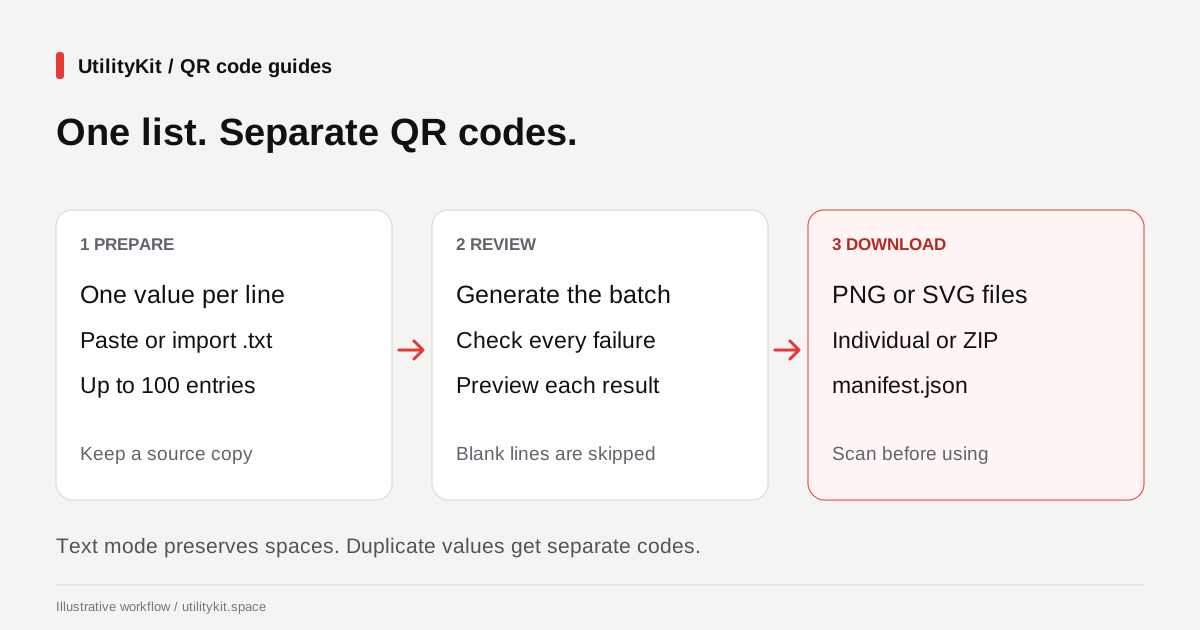
To create QR codes in bulk, put one URL or text value on each line, choose Bulk QR codes in the free QR Code Generator, and select Generate QR codes. You can create up to 100 codes per batch without an account, then download individual images or a ZIP containing the successful results.
This works well when each product card, equipment label, or handout needs a different destination. The important preparation is deciding exactly what each code should contain before generating the images.

Prepare one value per line
Suppose three product cards need three different instruction pages. Your input could look like this:
https://example.com/products/desk-lamp
https://example.com/products/reading-lamp
https://example.com/products/wall-lamp
These are illustrative addresses. Replace them with your own working destinations before generating production codes. Do not add a column heading such as Product URL: it would become another entry.
You can paste the list or use Import a text file to select a UTF-8 .txt file of at most 1 MB. If the values come from a spreadsheet, copy the intended column and inspect the pasted text. Multiple columns, spreadsheet quoting, and multiline cells need cleanup first; this input is not a CSV parser.
Blank lines are skipped. Duplicate values are kept, which is useful when several labels intentionally share a destination. If a repeated address is accidental, remove it before generating.
Choose the right content type
Select Website URLs for a list of web destinations. Supply a full address beginning with http:// or https://; the tool reports entries that cannot be accepted as web URLs.
Choose Text or QR payloads for identifiers, short messages, or complete QR payload strings you already prepared. In this mode, spaces are preserved. For example, ASSET-014 and ASSET-014 encode different text, even though the extra spaces may be hard to notice in a label inventory.
Text mode does not construct Wi-Fi or email fields for you. To build one of those interactively, return to Single QR code and use its relevant input form. In bulk mode, a prepared payload is encoded as supplied.
Generate with shared settings
- Open the generator and select Bulk QR codes.
- Paste or import your list, then check the entry count.
- Choose the content type and a PNG size of 256, 512, or 1024 pixels.
- Set the error correction level and use a dark foreground on a light background.
- Select Generate QR codes and watch the progress indicator.
- Review the generated and failed counts before downloading.
The settings apply to the whole batch. There is no per-row design editor. If two groups need different colors or sizes, generate them separately and keep their downloads in different folders.
For a first pass, keep the default colors and correction setting. Scan a sample before making design changes. Cancel generation stops the batch and discards its results; it does not save a partial download for later.

Resolve failures without losing track of the list
A result card identifies its original input line and shows either a preview or an explanation. A malformed website address needs correction. A value that exceeds QR capacity needs shortening or a different error correction setting; increasing PNG dimensions does not increase the amount of text a QR code can hold.
The ZIP can still contain successful entries when other rows fail. Its manifest.json records both the exported filenames and the failed rows. Before treating a batch as complete, reconcile the successful count with the number you intended to produce.
Changing the list or design settings clears previous results. Save a successful ZIP before starting a different batch, and keep the source list so you can reproduce it.
Download and verify a sample
Choose PNG images or SVG vectors under Download format, then select Download ZIP. Individual download buttons use the same format selection. For keeping filenames paired with labels, follow the ZIP organization guide.
Open a generated image in the QR Code Reader and compare the decoded contents with the intended value. A successful decode confirms the stored text; it does not establish that a linked page exists or belongs to the organization you expect. Check the destination separately.
Generation and ZIP creation run in your browser. The tool does not upload the list for QR processing or save a batch history. Website hosting and advertising requests are separate; see the privacy policy. Keep your source list and downloads locally if you will need them again.
Last reviewed: October 29, 2026. Steps and limits were checked against the implemented bulk generator and its automated tests.
Frequently Asked Questions
Quick answers to common questions for users and search assistants
Can I import a spreadsheet or CSV directly?
Does one invalid entry stop the entire batch?
Related Utilities Mentioned in This Guide
Browse directoryContinue Reading
QR Code Not Scanning? Find the Cause and Fix It
Troubleshoot unreadable QR codes by checking the original image, crop, contrast, camera access, and printed proof. Separate decoding failures from broken links.
Organize Bulk QR Code Downloads for Product Labels
Match bulk QR filenames to the right products using the ZIP manifest, choose PNG or SVG, and check a printed proof before producing a full label batch.