Join Lines with Commas Free, Without Creating an Account
Turn a column into a comma-separated list free in your browser. Choose separators, keep meaningful blanks, and inspect the result without an account.
Join and Split Lines
Join lines with custom delimiters, or split text into lines by character or separator.
Paste one value per line into the free Join and Split Lines tool, choose Join Lines, and select a comma separator. The output contains the same values in the same order, separated by commas rather than newlines. No account is required.
This is useful for a short set of product codes, labels, or other simple values. Check what the receiving field expects: a comma-separated list, a CSV record, JSON, and an SQL expression are different formats.
A local formatting step between two applications
When one application gives you a column and another expects one line, this tool supplies the missing formatting step. You choose the separator and whether to preserve empty positions, then copy or download the result for free.
Joining and splitting run in the browser without requiring the list to be submitted to a processing server. You still need to decide whether the destination application should receive those values. The website's hosting and advertising requests are separate; see the privacy policy. Local formatting is not an anonymity or zero-tracking promise.
Convert a small example
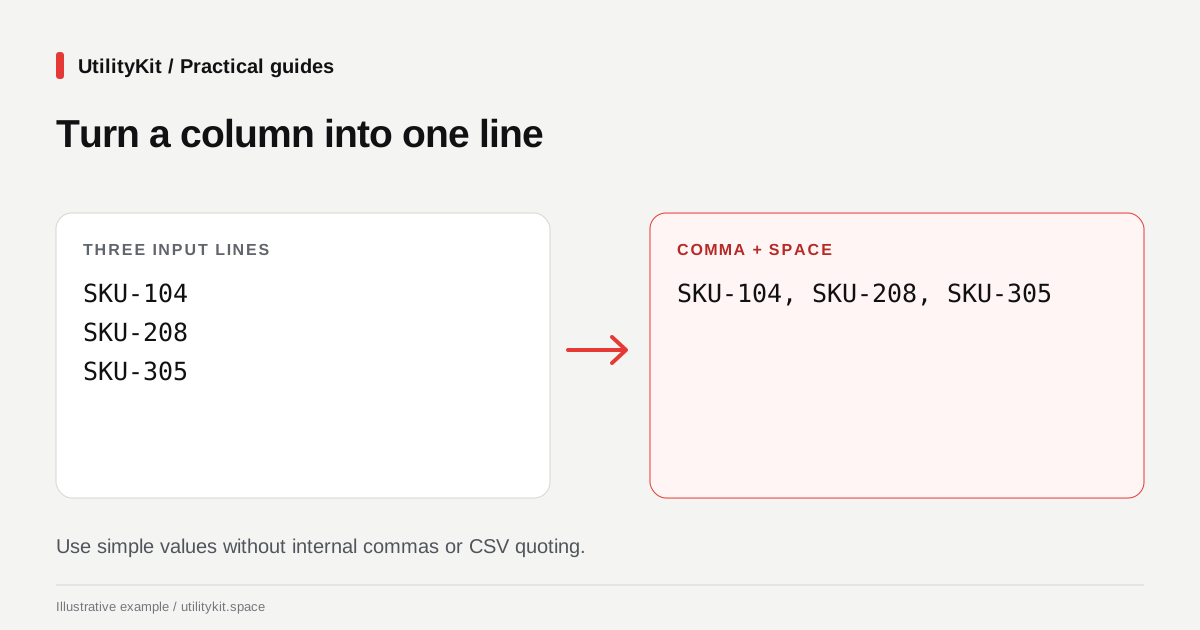
Start with these synthetic product codes:
SKU-104
SKU-208
SKU-305
Using Comma + Space (, ) produces:
SKU-104, SKU-208, SKU-305Using Comma (,) produces:
SKU-104,SKU-208,SKU-305Some destination fields ignore spaces around values, while others preserve them. Use the separator that matches the destination's documented input rather than assuming those two outputs are interchangeable.

Join the list and verify its size
- Open Join and Split Lines and choose Join Lines.
- Paste one item per line.
- Select a separator: comma, comma plus space, semicolon, pipe, space, or a custom string.
- Enable trimming if surrounding spaces are not part of the values.
- Remove empty items only if blank positions carry no meaning.
- Check the item count and copy or download the output.
For the example above, expect three items before and after joining. If you started with a column copied from a spreadsheet, make sure you copied one column rather than several columns separated by tabs.
The tool does not sort or deduplicate during joining. To change those properties, first use natural sorting or duplicate removal, and verify that intermediate result.
Split a list back into separate lines
Choose Split Text, paste SKU-104, SKU-208, SKU-305, and select a comma delimiter. With trimming enabled, the result returns to the three-line list.
Splitting uses the exact selected separator. A pipe-delimited list needs a pipe delimiter; a custom delimiter of two characters is treated as that complete string. JavaScript's split documentation describes the string-splitting operation used here.
Be careful with empty positions. Splitting A,,C with empty-item removal enabled leaves A and C. If the blank position represents a missing answer in a three-field record, removing it loses information.
Recognize values that need quoting
A value such as Rabat, Morocco contains its own comma. Joining it with another value produces text that a simple comma splitter cannot interpret unambiguously.
CSV handles this with quoting and escaping rules, described in RFC 4180. UtilityKit's simple joiner does not implement those rules. Use a CSV-aware export when any item contains the separator, quotes, or embedded newlines.
Likewise, SKU-104,SKU-208 is not a JSON array. JSON needs brackets and appropriately escaped strings. Adding a separator also does not turn arbitrary values into a safe SQL query; use your application's parameterized-query facilities for database work.
Make a quick round-trip check
For a plain list whose items contain no separators, join it and then split the result using the same delimiter. Compare the recovered values with the original. Differences in count, spacing, or order reveal a setting that needs attention.
For paragraph text, choose Remove Line Breaks instead. That workflow preserves prose spacing and paragraph boundaries rather than inserting commas between lines.
Last reviewed: October 28, 2026. Examples are simple text lists rather than structured file exports.
Frequently Asked Questions
Quick answers to common questions for users and search assistants
Does joining lines with commas produce a valid CSV file?
Does the tool remove duplicate values when joining?
Related Utilities Mentioned in This Guide
Browse directoryJoin and Split Lines
Join lines with custom delimiters, or split text into lines by character or separator.
Sort and Number Lines
Sort lines alphabetically, numerically, or naturally, and add custom line numbering.
CSV & List Duplicate Remover
Deduplicate comma, semicolon, or tab-delimited lists and CSV rows instantly.
Continue Reading
Sort Numbered File Lists Free: Get the Order 1, 2, 10
Sort filenames and numbered labels free in your browser. Choose natural order, add numbering, and copy the result without an account or file uploads.
Remove Duplicate List Values Free in Your Browser
Remove repeated comma-separated values free, without an account. Process the list locally and control case, whitespace, and first-seen order.