Remove Line Breaks Free While Keeping Paragraphs
Fix wrapped text free in your browser, without an account. Keep paragraph gaps, inspect the result, and avoid sending drafts to a text-processing server.
Remove Line Breaks
Remove unwanted line breaks, join paragraphs, or merge text into a single line.
Choose Preserve Paragraphs to join wrapped lines while retaining blank-line gaps between paragraphs. Choose Single Line (Merge All) only when you want the entire input to become one continuous line.
The free Remove Line Breaks tool works from the line breaks present in your pasted text, with no account required. It cannot tell whether two sentences belong to different paragraphs if the copied text contains no separator between them.
Clean a draft with local, visible changes
The text transformation runs in your browser rather than sending your draft to a remote processing endpoint. For a copied paragraph, the useful choice is explicit: keep paragraph gaps or merge everything into one line. You can inspect the output before copying it into your document.
Processing and download are currently free. This is a formatting tool, not a redactor: any names or other sensitive details remain in the output unless you remove them. Hosting and advertising requests are separate from text processing and are explained in the privacy policy.
Identify hard breaks before changing anything
Text can wrap visually because an editor window is narrow, or it can contain an actual newline character after each short line. Only the second case needs line-break removal.
Try widening the source editor. If the words reflow naturally, you may be seeing visual wrapping. If the same short lines remain, copy a small sample into the tool and inspect the result before processing the entire document.
Different systems represent line endings differently. MDN's CRLF explanation describes carriage returns and line feeds. UtilityKit normalizes those common line-ending characters before joining the text.

A before-and-after example
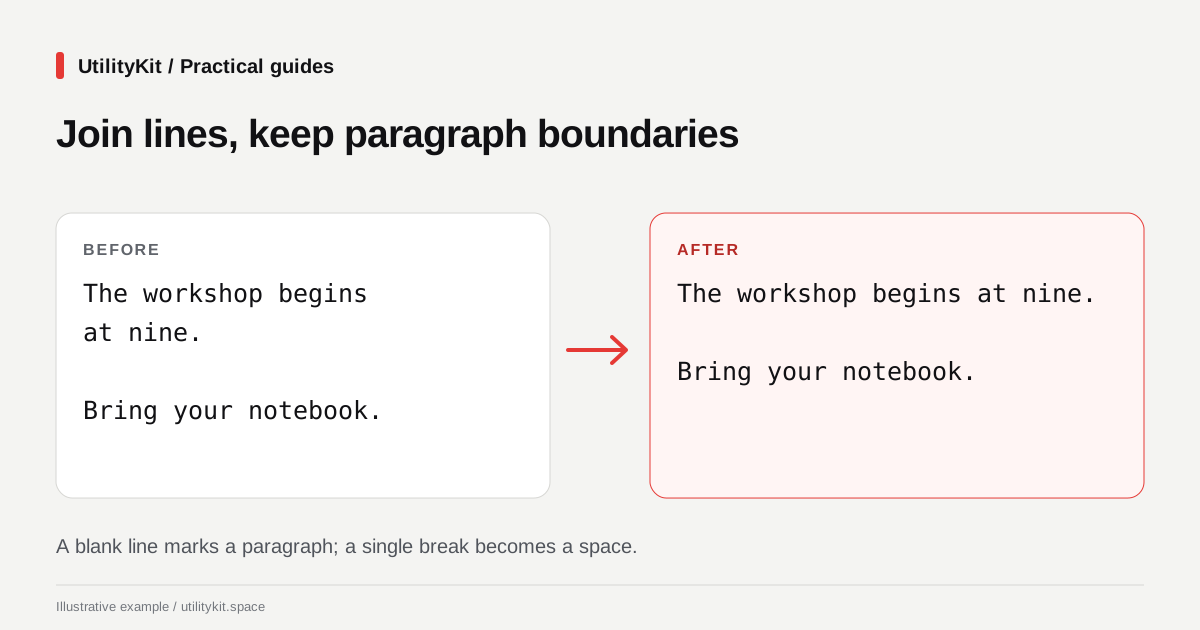
Paste this synthetic example:
The workshop begins
at nine in the morning.

Bring your notebook
and a printed ticket.
With Preserve Paragraphs selected, the result should be:
The workshop begins at nine in the morning.

Bring your notebook and a printed ticket.With Single Line (Merge All), both paragraphs become one line. Neither mode rewrites the words or decides whether the sentences make sense together.
Clean one section at a time
- Keep an unchanged copy of the source text.
- Paste a paragraph or short section into Remove Line Breaks.
- Select Preserve Paragraphs for prose with blank-line separators.
- Enable Trim extra spaces if leading indentation and repeated horizontal spaces are unwanted.
- Compare the result with the source, then copy or download it.
- Repeat for the remaining prose sections once the settings are appropriate.
The spacing option can collapse repeated spaces inside a line as well as trimming its edges. Leave it off when spacing carries meaning, such as in a simple aligned text diagram.
If a copied document has headings separated by only a single newline, add a blank line around each heading before processing. Otherwise a heading may be joined to the paragraph that follows it.
Leave structured blocks alone
Postal addresses, poems, checklists, code, and tables often depend on line breaks. Process the surrounding prose separately and preserve these blocks in the original arrangement.
For a list that needs commas instead of newlines, use Join and Split Lines. It gives you an explicit separator and is explained in the comma-separated-list guide.
Watch for words split at the edge of a PDF page. Joining inter- and national with a space does not produce international. Correct known cases manually or with a narrowly targeted find-and-replace operation. Removing all hyphens would also damage valid words such as part-time.
Verify the cleaned text
Read across each former line boundary, especially around punctuation, headings, and the end of a page. Check that separate paragraphs remain separate and that no address or list has collapsed into a sentence.
For broader cleanup involving unusual spaces or copied characters, see cleaning text copied from PDFs. Keep line-break removal focused on paragraph flow so you can spot exactly what changed.
Last reviewed: October 28, 2026. Examples describe the current paragraph-preserving transformation.
Frequently Asked Questions
Quick answers to common questions for users and search assistants
How does Preserve Paragraphs decide where a paragraph ends?
Will removing line breaks repair words split with a hyphen?
Related Utilities Mentioned in This Guide
Browse directoryRemove Line Breaks
Remove unwanted line breaks, join paragraphs, or merge text into a single line.
Text Cleaner
Remove rogue line breaks, extra spaces, odd characters, and formatting clutter.
Find and Replace
Find and replace text or regex patterns across multi-line documents.
Continue Reading
Free Find and Replace with a Preview You Can Check
Replace text free in your browser, without an account. Review a separate output and replacement count before applying changes to your original draft.
Join Lines with Commas Free, Without Creating an Account
Turn a column into a comma-separated list free in your browser. Choose separators, keep meaningful blanks, and inspect the result without an account.