Free Find and Replace with a Preview You Can Check
Replace text free in your browser, without an account. Review a separate output and replacement count before applying changes to your original draft.
Find and Replace
Find and replace text or regex patterns across multi-line documents.
Use literal matching for a known phrase, whole-word matching when a short word also appears inside longer words, and regex only when you need a pattern. Then check the replacement count and compare the result before overwriting the original.
UtilityKit's free Find and Replace tool updates a separate output as you change the input and settings. There is no account or payment step, and you can review a proposed edit before copying it elsewhere.
Make a controlled edit without remote text processing
The replacement runs locally in your browser. The tool does not need to submit your draft to an application server to perform the edit. A separate output and replacement count help you inspect changes before using them in the original document.
For example, when updating a project name in a handoff note, you can choose exact capitalization and whole-word matching, then compare the output with the original. Those visible controls are the reason to use this workflow. They do not make replacement a privacy scrubber: details you did not match remain in the text. Website services and ads are described in the privacy policy.
Start with the smallest matching rule
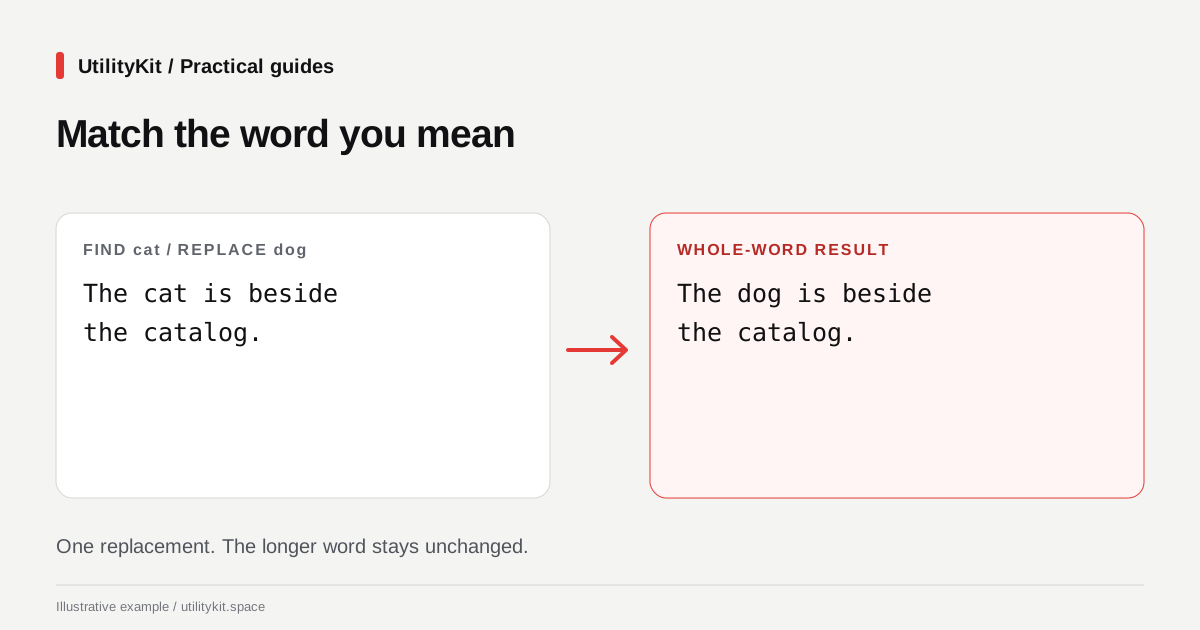
Suppose you want to replace cat with dog in this sentence:
The cat is beside the catalog.Without whole-word matching, the result is:
The dog is beside the dogalog.With whole-word matching enabled in literal mode, the expected result is:
The dog is beside the catalog.The first operation has two matches; the second has one. A count that differs from your expectation is a reason to inspect the rule, not to dismiss the difference as harmless.
Replace a phrase step by step
- Keep the original text in a separate file or editor.
- Paste it into Find and Replace.
- Enter the exact phrase to find and its replacement.
- Leave regex mode off for ordinary text, including URLs and filenames.
- Choose case matching if capitalization determines which occurrences should change.
- Review the replacement count and the resulting sentences.
- Copy the output only after checking representative matches.
Literal mode treats punctuation as ordinary characters. For example, searching for v1.2 looks for that exact period. In regex mode, a period is a pattern character unless escaped, so the same search can match more than you intended.

Use regex for a narrow pattern
Imagine a synthetic checklist with identifiers in this form:
JOB-104 is ready. JOB-219 is waiting.Enable regex mode, find JOB-\d{3}, and replace it with [JOB]. The expected output is:
[JOB] is ready. [JOB] is waiting.Enter the pattern itself without surrounding slash delimiters. The tool applies global matching and controls case sensitivity through its option. It does not expose a separate multiline-flags selector.
Invalid patterns produce an error. Start with a short sample, especially for patterns involving repeated groups or long text. A valid expression can still match the wrong content.
Understand replacement and word-boundary limits
The current replacement text is literal even in regex mode. A replacement such as $1 does not insert a captured group. This differs from some editors and from JavaScript's direct string-replacement syntax; MDN documents the distinction between replacement strings and callback results.
Whole-word mode uses JavaScript word boundaries for literal searches. It is not a language-aware tokenizer, and results can be surprising with punctuation, underscores, or writing systems that do not use spaces between words. In regex mode, write any needed boundaries into the pattern itself; the whole-word option is not added automatically.
Review the edit in context
Check a match near the beginning, one in the middle, and one near the end. Also search the output for the original phrase to see whether an unexpected capitalization or spelling remained.
For a longer revision, use Text Diff and follow the comparison guide. If the file is structured JSON, edit and validate its structure rather than assuming a text replacement preserves valid data.
Last reviewed: October 28, 2026. Examples use the current matching and literal-replacement behavior.
Frequently Asked Questions
Quick answers to common questions for users and search assistants
Can I use dollar-one to insert a captured regex group?
Does the tool replace every match?
Related Utilities Mentioned in This Guide
Browse directoryFind and Replace
Find and replace text or regex patterns across multi-line documents.
Text Diff Checker
Compare two text snippets side-by-side and highlight additions, deletions, and changes.
Text Cleaner
Remove rogue line breaks, extra spaces, odd characters, and formatting clutter.
Continue Reading
Remove Line Breaks Free While Keeping Paragraphs
Fix wrapped text free in your browser, without an account. Keep paragraph gaps, inspect the result, and avoid sending drafts to a text-processing server.
How to Edit a JSON Configuration File Without Breaking Its Structure
Discover how to modify JSON configs, package.json, and app settings safely using draft validation, inline key renaming, and type-safe visual tree editing.