How to Edit a JSON Configuration File Without Breaking Its Structure
Discover how to modify JSON configs, package.json, and app settings safely using draft validation, inline key renaming, and type-safe visual tree editing.
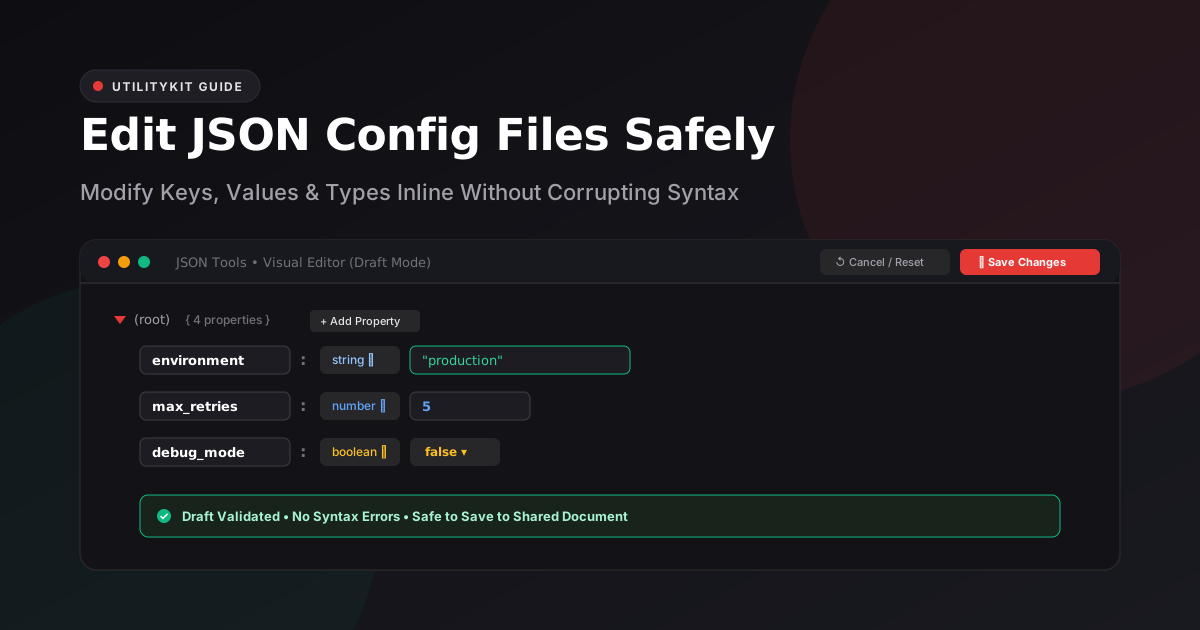
JSON Tools
Format, validate, view in a collapsible interactive tree, and visually edit JSON with draft safety.
Every software engineer, devops specialist, and system administrator has experienced the dreaded configuration crash: You open a package.json, tsconfig.json, or production app configuration file to tweak one setting, save the file, restart your service, and your entire deployment crashes with:
SyntaxError: Unexpected token '}' in JSON at position 524Manual text editing of JSON is notoriously error-prone. In this guide, you will learn why JSON configurations fail so easily, the four most common structural pitfalls, and how to use a visual draft tree editor to update settings safely.
Why Manual JSON Config Editing is Fragile
JSON was originally designed as a strict data interchange format (RFC 8259), not a human-friendly configuration language like YAML or TOML. It enforces strict punctuation rules:
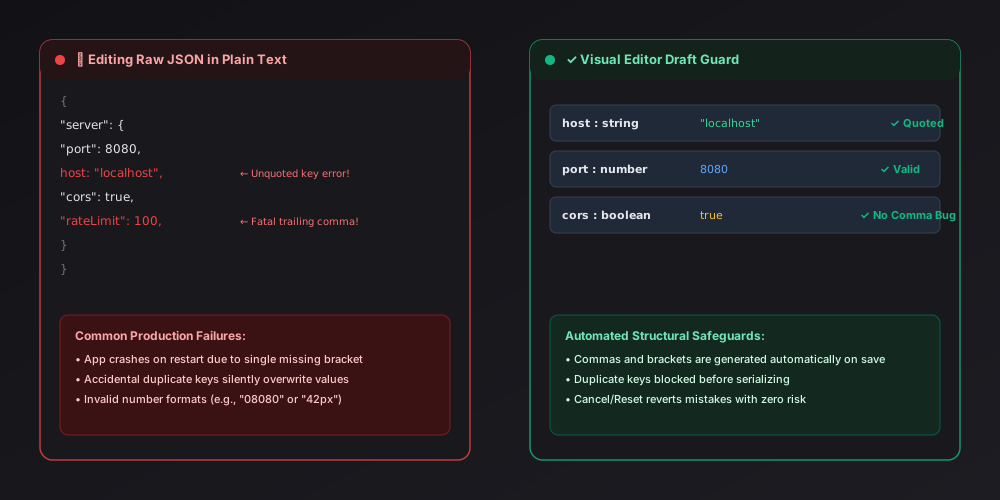
The Top 4 Pitfalls of Manual Config Editing
1. The Trailing Comma Trap
Adding a new dependency or environment variable often leaves an extra comma on the preceding line or at the end of an object:
// ❌ FAILS: Trailing comma after "port"
{
  "host": "0.0.0.0",
  "port": 8080,
}
In JavaScript and TypeScript, trailing commas are encouraged for clean Git diffs. In JSON, they are fatal syntax errors.
2. Accidental Duplicate Keys
When working in a large configuration file (like a 400-line server settings file), you might add a key that already exists 150 lines earlier:
{
  "timeout": 3000,
  ...
  "timeout": 5000
}
JSON parsers either silently overwrite the first value or behave unpredictably depending on your programming language runtime.
3. Type Confusion (String vs. Primitive)
Certain settings require strict booleans or numbers:
- ❌
"debug": "false"(In JavaScript, the non-empty string"false"evaluates to truthytrue!) - ✅
"debug": false(Real boolean literal) - ❌
"port": "8080"(String instead of numeric integer) - ✅
"port": 8080(Actual number)
4. Unbalanced Brackets During Deletions
Deleting a middle object or array item from a nested structure often leaves an orphan { or ] that takes minutes of tedious inspection to diagnose.
The Solution: Visual Draft Tree Editing
Instead of risking manual syntax errors in raw text, UtilityKit's JSON Tools provides a dedicated Visual Editor mode designed specifically for safe configuration updates:
graph LR
    A["Raw JSON Document"] --> B["Enter Visual Editor"]
    B --> C["Isolated Draft State"]
    C --> D["Inline Key/Value Edits"]
    C --> E["Add/Delete Properties"]
    D --> F{"Validation Checks"}
    E --> F
    F -- "Invalid (Empty key / Bad number)" --> G["Save Disabled + Errors Highlighted"]
    F -- "Valid" --> H["Save Commits to Shared JSON"]
    C --> I["Cancel Reverts All Draft Changes"]
Key Safety Guarantees
- Inline Key Renaming: Rename object properties directly in a structured input. The editor ensures no empty keys are created and automatically detects duplicate keys at the same level.
- Type Switching Dropdowns: Convert any property between
string,number,boolean,null,object, andarraywith a single click. When changing to a number, the editor initializes a valid numeric default (0). - Structured Addition & Deletion: Click
+ Add Propertyon any object or+ Add Itemon any array. The editor handles commas, brackets, and indentation automatically. - Draft Safety & Tab Protection: Edits stay in an isolated draft state. If an entered number is invalid (e.g.,
42abcor empty), the Save Changes button is disabled, and an alert banner lists the exact errors. If you attempt to switch tabs while edits are unsaved, a protective dialog asks whether you wish to save, discard, or keep editing.
Practical Walkthrough: Updating a Server Config
Here is how to update a server configuration file safely using JSON Tools:
Original Config:
{
  "service": "billing-worker",
  "concurrency": 4,
  "features": {
    "auto_retry": true,
    "webhooks": false
  },
  "endpoints": [
    "https://api.internal.net/v1"
  ]
}
Step-by-Step Edit in UtilityKit:
- Open JSON Tools and paste the config snippet into the Format tab.
- Click the Visual Editor tab.
- To increase concurrency: locate
concurrency, double-click the numeric input, and change4to8. - To add a new endpoint: click
+ Add Itemon theendpointsarray and type"https://backup.internal.net/v1". - To enable webhooks: change the dropdown on
webhooksfromfalsetotrue. - Click Save Changes.
Switch back to the Format tab, and your updated, perfectly indented JSON is ready to copy or download directly to your server.
Frequently Asked Questions
Quick answers to common questions for users and search assistants
Why do configuration files like package.json break so easily during manual editing?
What is draft-safe JSON editing?
Can I convert a property's type, such as turning a string into an object or boolean?
Related Utilities Mentioned in This Guide
Browse directoryJSON Tools
Format, validate, view in a collapsible interactive tree, and visually edit JSON with draft safety.
Text Diff Checker
Compare two text snippets side-by-side and highlight additions, deletions, and changes.
Text Cleaner
Remove rogue line breaks, extra spaces, odd characters, and formatting clutter.
Continue Reading
How to Explore Deeply Nested JSON with a Collapsible Tree Viewer
Learn how to inspect, search, and navigate complex, multi-level JSON structures using an interactive collapsible tree viewer without text fatigue or accidental syntax edits.
JSON Objects, Arrays, and Value Types Explained with Real Examples
Master the 6 official JSON data types under RFC 8259: objects, arrays, strings, numbers, booleans, and null, and understand why undefined and functions are forbidden.