Reorder PDF Pages Free in Your Browser
Reorder scanned PDF pages free, without an account. Arrange pages locally in your browser, keep the original, and check the downloaded document.
Reorder PDF Pages
Rearrange the page sequence of your PDF document visually.
You can fix an out-of-order scan by rearranging the pages in the PDF and downloading a new copy. There is no need to photograph or scan the paper again when the existing images are readable.
UtilityKit's free Reorder PDF Pages tool lets you arrange the document and download the result without creating an account. The page-copying operation runs in your browser; the tool does not require sending the PDF to an application server for processing.
Keep the file local and the page order clear
For a scanned project packet, the useful combination is local file processing, visible original page numbers, and a separate downloadable copy. You can use the original to check every move instead of rescanning the paperwork or creating a document account.
This is a free workflow, not a promise of unlimited capacity: the current upload control accepts files up to 50 MB. Local document processing also does not mean the website makes no network requests. Hosting, advertising, and other site services are explained in the privacy policy.
The part that deserves attention is identifying each page correctly. A PDF's third page is not necessarily the sheet with a printed 3 at the bottom. Make a short map before moving pages.
Map the pages before moving them
Open the original file in your usual PDF viewer. Write down what each page contains, using its position in the file rather than its printed page label.
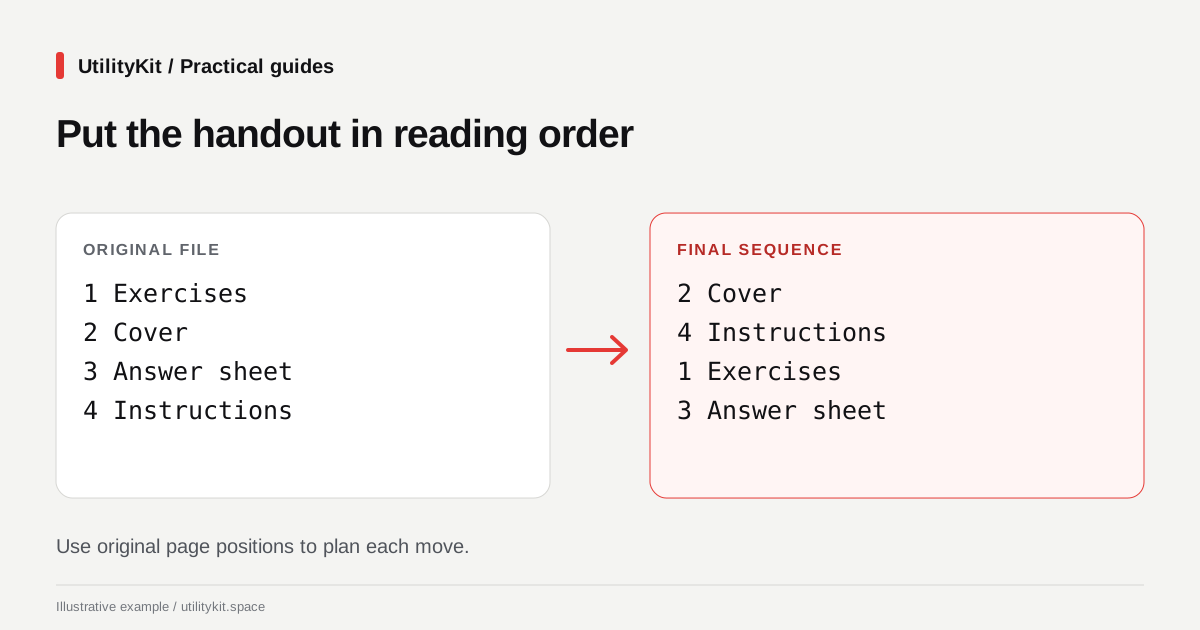
For a four-page project handout, your map might look like this:
| Original file position | Content | Desired position |
| 1 | Exercises | 3 |
| 2 | Cover | 1 |
| 3 | Answer sheet | 4 |
| 4 | Instructions | 2 |
The correct sequence of original pages is therefore 2, 4, 1, 3. That sequence is a planning aid; use the tool's page controls to arrange it.
This small check prevents a common mistake: moving the page labeled “Instructions” to position two, then forgetting that the original page numbers still refer to the uploaded file.
Rearrange the PDF in UtilityKit
- Keep the original PDF and work from a copy.
- Open Reorder PDF Pages and select the file.
- Use the page movement controls to place the cover first, instructions second, exercises third, and answer sheet last.
- Compare the displayed sequence with your original-position map.
- Generate the reordered PDF and download it.
- Open the downloaded file, rather than assuming the arrangement screen proves the export is correct.
The current interface accepts PDFs up to 50 MB. Browser memory and document complexity also matter; a file below that limit can still be difficult to process on a device with little available memory.
Verify more than the first page
Check the beginning, middle, and end of the new document. In the handout example, confirm that all four pages remain and that no exercise page has been omitted.
Look for references that now need editorial changes. Moving an appendix does not rewrite a sentence such as “see page 12.” Printed page numbers remain part of the original page content, even when their positions change.
If you only need a subset, extracting selected pages is usually clearer than treating reordering as a deletion workflow. If the order is right but the pages are sideways, use the separate rotation guide.
What reordering does not fix
Reordering is not OCR, redaction, or a repair for blurry images. A photograph of a page remains a photograph after it moves. For searchable scans, see the OCR workflow guide.
The implementation copies selected pages into a new PDF. The underlying library documents this operation in pdf-lib's copyPages reference. Do not assume every document-level feature transfers with those pages: check bookmarks, interactive forms, and links in any document that uses them.
Keep a signed original separately and avoid treating a rearranged copy as an unchanged signed file. For ordinary handouts and reports, finish by checking the page count and saving a descriptive name such as project-handout-ordered.pdf.
Last reviewed: October 28, 2026. Workflow checked against the current UtilityKit interface and implementation.
Frequently Asked Questions
Quick answers to common questions for users and search assistants
Does reordering a scanned PDF make its text searchable?
Why does page 3 in the tool have a different number printed on it?
Related Utilities Mentioned in This Guide
Browse directoryContinue Reading
Combine Receipt Photos into a PDF Free in Your Browser
Create an expense PDF from receipt photos free, without an account. Arrange images and generate the document locally, then check every amount.
Rotate a PDF Free and Save It Without an Account
Rotate a sideways PDF free in your browser and download the corrected copy. No account needed; learn the all-pages rotation limit before starting.