Combine Receipt Photos into a PDF Free in Your Browser
Create an expense PDF from receipt photos free, without an account. Arrange images and generate the document locally, then check every amount.
Convert Images to PDF
Convert JPG, PNG, and WebP images into a single professional PDF document.
To combine receipt photos into one PDF, select the images, put them in the order your expense claim uses, and export the result. Each image becomes a page. The useful result is a readable packet that a reviewer can match to your expense list.
UtilityKit's free Convert Images to PDF tool accepts JPG, PNG, and WebP images. You can arrange the receipts and download the packet without signing up. It does not extract transaction details or determine whether an expense qualifies for reimbursement.
Build the expense packet locally
Receipts can show names, addresses, and purchase details. This conversion builds the PDF in your browser instead of requiring you to send those images to a document-processing server. You decide which images to include, which order to use, and where to save the finished file.
The workflow's useful feature is the ordered packet: each photo becomes a page, so the reviewer can follow the same sequence as your expense list. Conversion and download are currently free. Local image processing is separate from the website's hosting and advertising requests, described in the privacy policy.
Prepare the photos before conversion
Start with the image itself. PDF conversion cannot recover a missing total or sharpen text that was out of focus in the photograph.
For each receipt, check that the merchant name, transaction date, purchased items, and final amount are visible. Include any information your recipient specifically requests. Avoid cropping off a currency symbol or the line that explains a tip or adjustment.
Straighten and crop the photo in an image editor if needed. Keep the original image so you can revisit an overly tight crop. If your phone saves HEIC files, export them to JPG or PNG first; changing a filename extension does not convert the format.
Match the document to your expense list
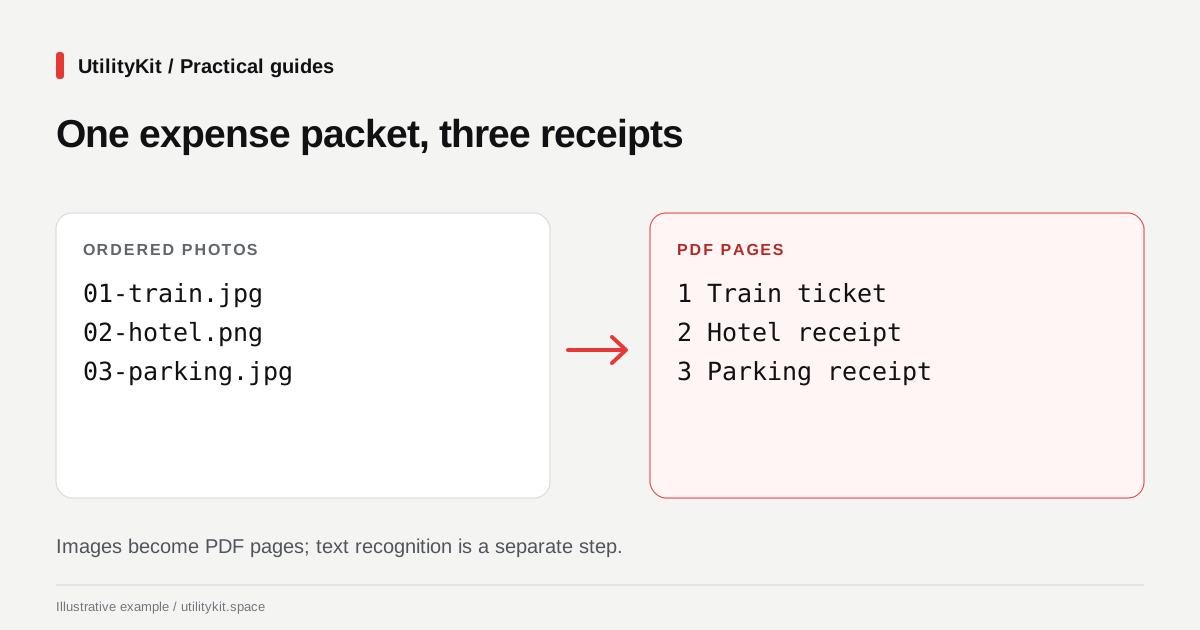
Here is a simple example for a three-item claim:
| Claim item | Image filename | PDF page |
| Train ticket | 01-train.jpg | 1 |
| Hotel receipt | 02-hotel.png | 2 |
| Parking receipt | 03-parking.jpg | 3 |
Numbering the filenames helps you reason about the sequence, but still check the actual image order inside the tool. File selection order can differ from the order you expected.
If one long receipt needs two photographs, place its top section immediately before its bottom section. Keep enough overlap to show that they belong together without obscuring important details.
Build and inspect the PDF
- Open Convert Images to PDF.
- Select the supported receipt images.
- Arrange them in claim order using the image-list controls.
- Remove accidental duplicate photos before exporting.
- Generate and download the PDF.
- Open every page and compare it with the expense list.
Look closely at decimal separators and faint thermal printing. An image that looks acceptable as a small thumbnail may be unreadable when the reviewer zooms in.
Use a descriptive final filename such as 2026-10-site-visit-receipts.pdf. If you discover an ordering mistake after export, the page-reordering guide explains how to fix it without rebuilding the photos.
Understand the output's limits
The converter uses each image's dimensions to create its PDF page. It does not provide an A4 or Letter layout selector. A tall receipt and a wide ticket can therefore produce differently shaped pages. If a recipient requires uniform paper dimensions, use a layout workflow that explicitly sets those dimensions.
Packaging an image in a PDF also does not make it smaller automatically. Large source photographs can produce a large document. Check the output against the receiving system's actual file limit rather than assuming conversion is compression.
The JPEG and PNG embedding operations are documented in pdf-lib's PDFDocument reference. UtilityKit converts WebP images through a browser canvas before embedding them.
Keep extraction and packaging separate
This workflow packages evidence for reading. A PDF containing receipt photographs still needs an OCR step if you want searchable text; see how scanned PDFs become searchable.
If some supporting documents are already PDFs, convert the photos first, then use Merge PDFs to combine them with those documents. Check the final page count and order once more before submitting the claim.
Last reviewed: October 28, 2026. Example filenames and expense items are illustrative.
Frequently Asked Questions
Quick answers to common questions for users and search assistants
Will converting receipt photos to PDF extract the totals?
Can I upload HEIC receipt photos?
Related Utilities Mentioned in This Guide
Browse directoryContinue Reading
Reorder PDF Pages Free in Your Browser
Reorder scanned PDF pages free, without an account. Arrange pages locally in your browser, keep the original, and check the downloaded document.
How to Make a Scanned PDF Searchable with OCR: Complete Guide
Learn how Optical Character Recognition (OCR) converts scanned paperwork and image-based PDFs into searchable, selectable, and copyable digital documents.