Free PDF to PNG or JPG: Export Pages in Your Browser
Convert PDF pages to PNG or JPG free, with local rendering and no account. Choose a resolution, inspect the images, and download pages or a ZIP.
Convert PDF Pages to Images
Export PDF document pages into high-resolution PNG image files.
Start with PNG when exporting a PDF page containing small text, charts, or line drawings. Try JPG when the page is mostly photographs and file size matters more than preserving every rendered pixel. In either case, inspect the image at the size where you plan to use it.
UtilityKit's free Convert PDF Pages to Images tool offers both formats, plus Standard (1.5x) and High Resolution (2x Retina) rendering options. There is no account or payment step for conversion and download.
Local page rendering with a choice of outputs
The tool renders the selected PDF in your browser. You can choose individual page images or bundle the results in a ZIP, which is useful when preparing several figures from a report for a presentation. The PDF itself is supplied to the local renderer rather than uploaded to a conversion endpoint.
Local rendering does not make this an offline application. The page loads a PDF rendering worker from a third-party code host, and the site uses hosting and advertising services. Read the privacy policy alongside this description. The current PDF input limit is 50 MB, and memory use grows with the number and size of rendered pages.
Choose a format for the actual page
| Page content | Useful starting point | What to inspect |
| Small text or a spreadsheet table | PNG | Digits, thin rules, footnotes |
| Diagram with sharp colored edges | PNG | Labels and edge clarity |
| Full-page photograph | JPG | Fine detail and compression artifacts |
| Mixed text and photographs | Compare both | Whether file savings justify text changes |
PNG's lossless encoding does not mean the exported image retains the PDF's vector structure. The page is rendered into a fixed grid of pixels first. Enlarging that image later can still reveal pixels.
Understand the resolution setting
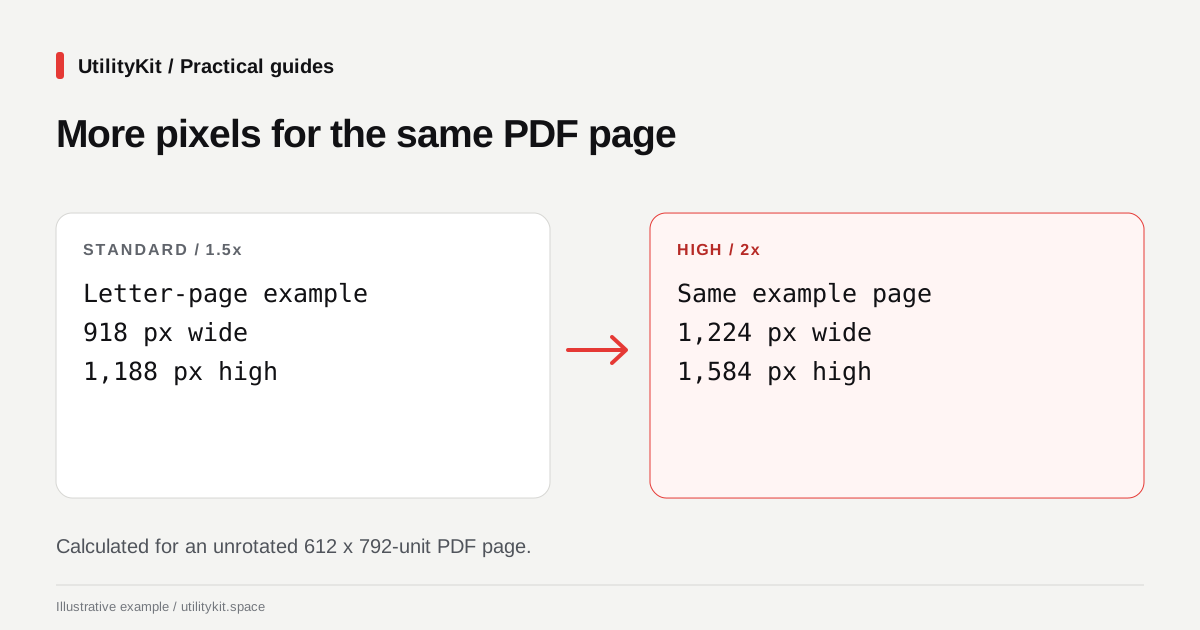
The scale setting changes the number of pixels produced from the page. For a typical unrotated Letter page measuring 612 by 792 PDF units, the expected dimensions are:
| Setting | Image width | Image height |
| Standard, 1.5x | 918 px | 1,188 px |
| High Resolution, 2x | 1,224 px | 1,584 px |
These are calculated dimensions for that example page, not measurements of every PDF. Rotation, page geometry, and document-specific settings can affect the result. The PDF.js rendering example explains how a page viewport and scale determine the rendered canvas.
Moving from 1.5x to 2x creates about 1.78 times as many pixels for the same page. That increases rendering and memory requirements; it does not imply a fixed increase in the compressed file size.
Export the pages you need
- If you need only a few pages from a long document, use Extract PDF Pages first.
- Open Convert PDF Pages to Images and select the PDF.
- Choose PNG or JPG based on the page content.
- Choose a resolution and run the conversion.
- Download individual page images or the ZIP archive.
- Open a downloaded image and check its dimensions and legibility.
The current interface processes every page in the selected PDF. There is no page-range field in this converter. Preparing a shorter PDF first avoids spending memory on pages you will discard.
Fix the cause of blur
If text looks blurry, first compare the original PDF. A clear vector page may benefit from a larger export scale. A low-resolution scan already contains limited detail; rendering it larger cannot reconstruct missing letter shapes.
Also check the destination. Inserting an image into a slide and stretching it to twice its original width can soften it. Some publishing tools apply their own image compression after upload, so inspect the final saved slide or page too.
If a page is sideways, correct its orientation before converting it. Avoid repeated JPG exports when a PNG or the original PDF is available.
Keep the PDF when interactivity matters
A page image is useful for a thumbnail, a slide illustration, or a visual reference. It is not a replacement for a document with selectable text, working links, or fillable fields. Keep the original PDF alongside the images when readers need those features.
Last reviewed: October 28, 2026. Resolution calculations use an illustrative 612 by 792-unit page.
Frequently Asked Questions
Quick answers to common questions for users and search assistants
Can I export only one page?
Does a PNG preserve selectable PDF text?
Related Utilities Mentioned in This Guide
Browse directoryContinue Reading
Combine Receipt Photos into a PDF Free in Your Browser
Create an expense PDF from receipt photos free, without an account. Arrange images and generate the document locally, then check every amount.
Rotate a PDF Free and Save It Without an Account
Rotate a sideways PDF free in your browser and download the corrected copy. No account needed; learn the all-pages rotation limit before starting.