Upload, Clipboard Paste, or Image URL: Choosing an Input Method
Compare the speed, privacy, and technical trade-offs of file uploads, clipboard pastes, and image URL inputs in online color picker tools.
Color Picker & Palette Generator
Extract dominant colors from images and generate harmonic color schemes.
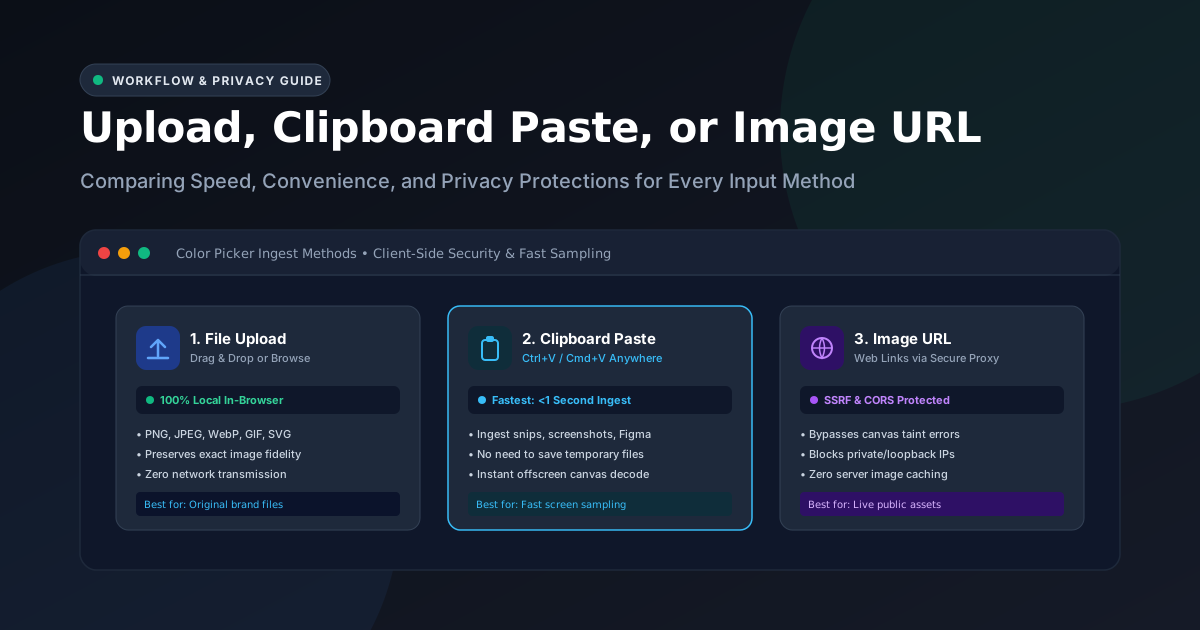
When sampling colors from visual assets, workflow speed and data privacy are paramount. Depending on what you are doing—reviewing an unreleased client design in Figma, inspecting a screenshot of a live competitor site, or analyzing a high-resolution stock photograph—your ideal input method changes.
The UtilityKit Color Picker supports three distinct input methods:
- File Upload (Drag & Drop)
- Clipboard Paste (`Ctrl+V` / `Cmd+V`)
- Public Image URL
While all three methods yield accurate dominant color palettes, they operate under fundamentally different architectural pipelines. In this article, we compare the mechanics, privacy implications, and ideal workflows for each method.
Method 1: File Upload (Drag & Drop or Browse)
File upload is the traditional standard for desktop productivity. You drag a raster graphic (.png, .jpg, .jpeg, .webp, .svg, or .gif) directly from your desktop file manager into the tool window.
Technical Architecture
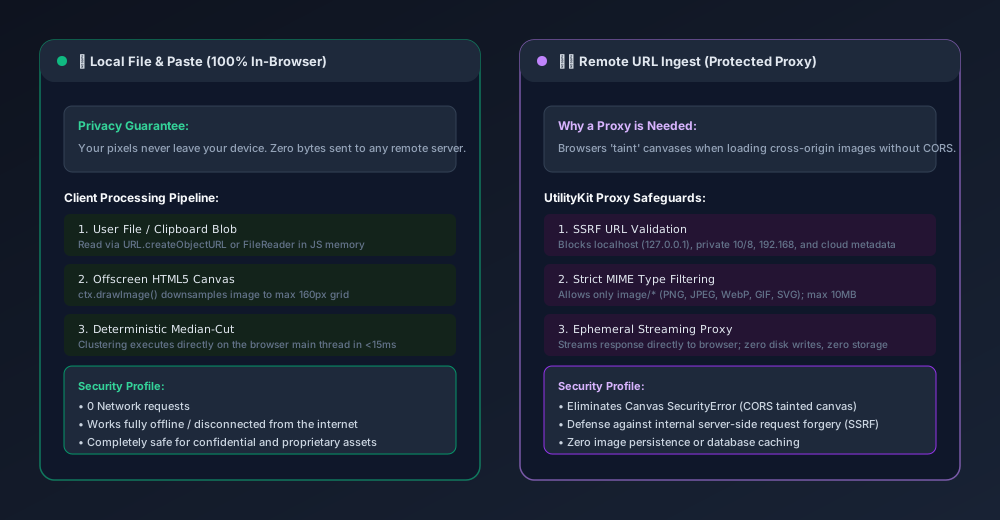
When a file is dropped into the dropzone:
- The browser's native
Fileobject is captured via the HTML5 Drag and Drop API or an<input type="file">element. - A temporary local object reference is instantiated in browser memory:
const objectUrl = URL.createObjectURL(file);- An
Imageelement loads the blob into memory and paints it onto an offscreen canvas downsampled to a maximum dimension of160px. - Color clustering executes on the CPU, and the object URL is revoked to release memory.
Security & Privacy Profile
- Network Requests: Exactly
0. - Server Transmission: None. The image file never leaves your computer's RAM.
- Offline Capable: Works without an active internet connection.
Best Used For:
- High-fidelity original brand files and marketing assets.
- Large multi-megabyte photographs where you need to verify exact color profiles.
- Highly sensitive, unreleased intellectual property or proprietary client branding.
Method 2: Clipboard Paste (`Ctrl+V` / `Cmd+V`)
Clipboard pasting is the fastest input method for modern digital product designers and frontend developers.
Using native operating system screen snip shortcuts (such as Win + Shift + S on Windows or Cmd + Shift + 4 on macOS), you capture any region of your screen, switch to the browser tab, and press Ctrl+V (or Cmd+V).
Technical Architecture
The tool binds a global paste event listener to the document window:
window.addEventListener("paste", (event: ClipboardEvent) => {
  const items = event.clipboardData?.items;
  if (!items) return;

  for (const item of items) {
    if (item.type.startsWith("image/")) {
      const blob = item.getAsFile();
      if (blob) {
        handleImageBlob(blob);
        break;
      }
    }
  }
});
When an image blob is detected in the operating system clipboard, it bypasses the file system entirely. It goes straight into browser RAM, decodes into the offscreen canvas, and extracts the palette in a fraction of a second.
Security & Privacy Profile
- Network Requests: Exactly
0. - Server Transmission: None.
- Disk Footprint: Zero temporary files created on your hard drive.
Best Used For:
- Fast exploratory work: sampling colors from Figma canvases, dribbble shots, YouTube video frames, or competing web apps.
- Developers inspecting UI components during code reviews without downloading temporary files.
Method 3: Public Image URL via Protected Proxy
Frequently, the image you need to inspect is already hosted on the public internet (such as an unsplash photo, a GitHub raw asset, or an online product listing). Downloading the image just to re-upload it is tedious.
However, loading an external image directly into a browser canvas introduces a major web security hurdle known as the CORS Canvas Taint Error.
Why Web Browsers Taint Cross-Origin Canvases
To prevent malicious websites from using scripts to spy on private intranet images or authenticated user sessions, web browsers enforce strict security rules:
- An
<img>tag can render an image from any public domain. - But if JavaScript calls
canvas.getContext("2d").getImageData()on that image without proper Cross-Origin Resource Sharing (CORS) headers from the hosting server, the browser throws:
  SecurityError: The operation is insecure.
  Failed to execute 'getImageData' on 'CanvasRenderingContext2D':
  The canvas has been tainted by cross-origin data.
The Solution: Secure Server-Side Proxying
To enable seamless URL analysis, the UtilityKit Color Picker routes remote image URLs through an endpoint (/api/tools/image-proxy).
Because public web proxies can be abused by malicious actors to scan internal corporate networks, UtilityKit implements enterprise-grade Server-Side Request Forgery (SSRF) defenses:
- Protocol Restriction: Only standard
http:andhttps:protocols are permitted. Special schemes (file:,ftp:,data:,gopher:) are blocked. - Private IP & Loopback Blocking: The proxy validates the hostname. Any requests targeting internal addresses—such as
127.0.0.1,localhost, RFC 1918 subnets (10.0.0.0/8,172.16.0.0/12,192.168.0.0/16), or link-local endpoints—are rejected immediately with a400 Bad Request. - Cloud Metadata Shield: Cloud provider metadata IP addresses (such as
169.254.169.254on AWS and Google Cloud) are strictly blocked. - MIME Type & Payload Enforcement: The proxy verifies the
Content-Typeheader and inspects the payload, rejecting files over10MBor non-image types (preventing HTML, executable, or script downloads). - Zero Disk Storage: The fetched image is streamed directly back to your browser with permissive CORS headers in RAM. No copies are ever saved to disk or stored in a database.
Decision Matrix: Which Method Should You Choose?
| Scenario | Recommended Input | Why? |
| Confidential Client Mockup | File Upload / Paste | 100% client-side; zero bytes leave your device. |
| Figma / Browser Inspecting | Clipboard Paste (Ctrl+V) | Ingest in < 1 second with no temporary desktop files. |
| Public Stock Image or CDN Asset | Image URL | Avoids downloading and re-uploading large files. |
| Offline / On an Airplane | File Upload / Paste | Works entirely offline without internet connectivity. |
| Vector Logos with Transparency | File Upload (.png / .webp) | Preserves original alpha transparency without browser clip. |
Conclusion
Whether you prefer dragging files, snapping screenshots with a keyboard shortcut, or pasting remote URLs, the UtilityKit Color Picker gives you the fastest path to production-ready color palettes with guaranteed privacy.
Give it a try with your favorite image or screenshot today.
Frequently Asked Questions
Quick answers to common questions for users and search assistants
Are my uploaded or pasted images saved on UtilityKit servers?
Why can't browsers extract colors directly from an image URL without a proxy?
How does the UtilityKit image proxy protect against security vulnerabilities like SSRF?
Related Utilities Mentioned in This Guide
Browse directoryColor Picker & Palette Generator
Extract dominant colors from images and generate harmonic color schemes.
Convert Images to PDF
Convert JPG, PNG, and WebP images into a single professional PDF document.
JSON Tools
Format, validate, view in a collapsible interactive tree, and visually edit JSON with draft safety.
Continue Reading
How to Extract a Color Palette from a Photo or Logo
Learn how to extract dominant color palettes from photographs and vector brand logos using median-cut quantization, alpha filtering, and canvas sampling.
How to Turn Image Colors into a Usable Website Palette
Transform raw extracted photo or logo swatches into an accessible, production-ready website design system using the 60-30-10 rule and CSS custom properties.