How to Extract a Color Palette from a Photo or Logo
Learn how to extract dominant color palettes from photographs and vector brand logos using median-cut quantization, alpha filtering, and canvas sampling.
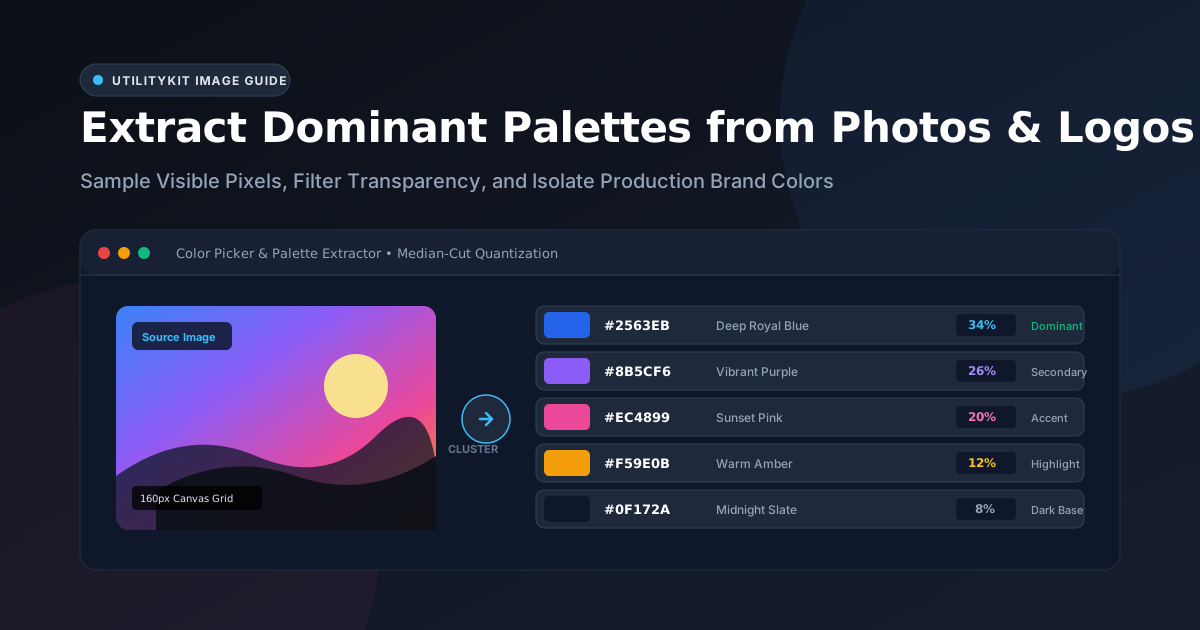
Color Picker & Palette Generator
Extract dominant colors from images and generate harmonic color schemes.
Whether you are designing a brand identity, building a website landing page, or creating social media graphics, extracting a cohesive color palette from an inspirational photograph or client logo is one of the most effective ways to establish visual harmony.
However, extracting production-ready colors from an image is more complex than clicking a simple eyedropper on a single pixel. A photograph taken in natural light contains hundreds of thousands of subtle color shifts, while a transparent vector logo file can inadvertently skew extraction algorithms if anti-aliased edge pixels or transparent canvas backgrounds are not handled correctly.
In this guide, you will learn the mechanics of algorithmic color extraction, how photograph extraction differs fundamentally from logo extraction, and how to use the free in-browser Color Picker tool to generate instant, copyable HEX palettes.
The Difference Between Single-Pixel Eyedroppers and Palette Extraction
When you use an eyedropper tool in desktop software, you sample the exact RGB value of a single pixel under your cursor. While useful for quick inspection, single-pixel sampling has major drawbacks:
- Camera Noise & Artifacts: In digital photographs, sensor noise and JPEG compression artifacts can make adjacent pixels vary significantly in hue and saturation.
- Anti-Aliasing Fringes: On logos and graphic illustrations, sampling near an edge captures mixed blend pixels rather than the true brand color.
- No Sense of Dominance: A single pixel provides no information about the visual prominence, surface area coverage, or color hierarchy within the asset.
Algorithmic palette extraction solves this by analyzing the entire visible pixel matrix simultaneously, clustering similar colors into statistical centers called centroids.
How Color Quantization Works Under the Hood
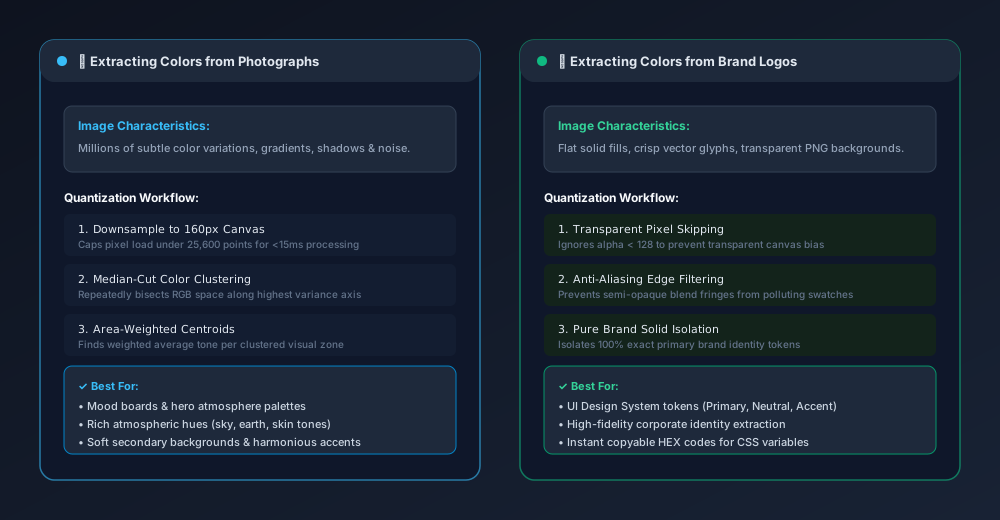
To extract 5 to 8 dominant colors instantly in the browser without freezing your computer, modern web tools like the UtilityKit Color Picker use an optimized three-step quantization pipeline:
1. Controlled Canvas Downsampling
High-resolution images captured on modern smartphones or cameras can easily measure 4000×3000 pixels (12 million pixels). Iterating through 48 million byte values in JavaScript would cause severe browser stutter.
To optimize performance without sacrificing color fidelity, the image is rendered onto an offscreen HTML5 canvas capped at a maximum dimension of 160px (preserving the original aspect ratio). This bounds the maximum analyzed sample size to 25,600 pixels. Because color palettes represent overall visual weight rather than high-frequency microscopic details, this downsampled grid produces virtually identical dominant clusters in under 15 milliseconds.
2. Alpha Channel Filtering
When extracting colors from brand logos stored as PNG or WebP files, large portions of the canvas are often completely transparent. If these pixels are analyzed as black (#000000) or white (#FFFFFF), they falsely dominate the resulting palette.
The extraction algorithm inspects the alpha channel of every pixel:
// Skip transparent or semi-transparent background pixels
const alpha = data[i + 3];
if (alpha < 128) continue;
By discarding pixels with an alpha value below 128, transparent backgrounds are completely omitted from the color clustering process.
3. Median-Cut Color Clustering
With the valid visible pixels collected, the algorithm applies median-cut quantization:
- All pixels are enclosed in an RGB bounding box in 3D color space.
- The algorithm finds the color channel (Red, Green, or Blue) exhibiting the greatest variance.
- The bounding box is split along the median of that channel into two smaller sub-boxes.
- This recursive subdivision continues until the target number of color clusters (between 5 and 8) is reached.
- The weighted average (centroid) of all pixels within each sub-box becomes the representative swatch.
Extracting Colors from a Photograph
Photographs capture natural light, cast shadows, and subtle reflections. When extracting a palette from a landscape or portrait:
- Look for Atmospheric Depth: The dominant color (often 30% to 50% of pixel area) usually represents the sky, ocean, foliage, or background wall. This color naturally serves as the foundational backdrop or ambient mood.
- Identify Secondary Support Colors: The middle 20% to 30% clusters represent foreground subjects, architectural elements, or midtones.
- Isolate Natural Accents: Smaller clusters (5% to 10%) capture highlights, such as golden hour sunlight reflecting off water or bright floral details.
[!TIP] When applying photograph-derived palettes to user interfaces, avoid using high-percentage ambient tones for body text. Instead, use them for background panels and card containers, and test text contrast against WCAG standards.
Extracting Colors from a Company Logo
Extracting from a vector brand logo or icon requires a different strategy than photographs:
- Use PNG or WebP with Transparency: Uploading a logo with a transparent background ensures that the extractor isolates the pure logo marks rather than an arbitrary white or grey canvas background.
- Watch for Edge Anti-Aliasing: If a logo has curved edges, a tiny percentage of pixels will be intermediate blend colors between the logo fill and the canvas. A deterministic median-cut extractor groups these into the primary solid clusters, giving you the true brand HEX codes.
- Primary vs. Neutral Swatches: In most logos, you will extract 1 to 2 brand identity colors (such as royal blue and vibrant orange) and 1 to 2 neutral anchoring tones (such as dark slate or crisp white).
Step-by-Step: Extracting a Palette with UtilityKit
Follow these steps to extract a clean palette from any image:
- Open the UtilityKit Color Picker in your browser.
- Provide your source asset using one of three options:
- File Upload: Drag and drop any PNG, JPEG, or WebP file into the dropzone.
- Clipboard Paste: Press
Ctrl+V(orCmd+Von macOS) to instantly paste a screenshot or copied image from Figma, Photoshop, or your clipboard. - Image URL: Paste any direct public image link. The server securely proxies the image to bypass browser CORS restrictions while protecting against SSRF.
- View the extracted swatches:
- Review the 5 to 8 dominant colors, complete with copyable HEX values and exact pixel coverage percentages totaling 100%.
- Click any extracted swatch to reveal instant color harmony suggestions (Complementary, Analogous, Triadic, and Split-Complementary).
- Click any HEX badge to copy the code directly to your clipboard for use in your CSS, Tailwind config, or design system.
Summary Checklist
| Goal | Technique | Expected Result |
| Mood Palette | Upload landscape or architecture photo | Cohesive atmospheric swatches for landing pages |
| Brand Identity | Upload transparent PNG logo | Precise primary brand HEX codes + neutral dark tones |
| Quick Screen Sample | Snip tool + Ctrl+V clipboard paste | Zero-file-clutter instant color inspection |
| UI Application | Map extracted swatches to 60-30-10 tokens | Balanced, accessible layout hierarchy |
Frequently Asked Questions
Quick answers to common questions for users and search assistants
How does an algorithmic color picker extract dominant colors from an image?
Why do photographs produce different palettes than company logos?
Can transparent background pixels skew my extracted color palette?
Related Utilities Mentioned in This Guide
Browse directoryColor Picker & Palette Generator
Extract dominant colors from images and generate harmonic color schemes.
Convert Images to PDF
Convert JPG, PNG, and WebP images into a single professional PDF document.
JSON Tools
Format, validate, view in a collapsible interactive tree, and visually edit JSON with draft safety.
Continue Reading
Complementary, Analogous, Triadic, and Split-Complementary Palettes
Master color wheel harmonies. Explore the mathematics behind complementary, analogous, triadic, and split-complementary schemes, and learn why wheel harmony does not guarantee WCAG accessibility.
How to Turn Image Colors into a Usable Website Palette
Transform raw extracted photo or logo swatches into an accessible, production-ready website design system using the 60-30-10 rule and CSS custom properties.