How to Use Punctuation and Correction Practice to Improve Typing
Master pinky finger reaches, opposite-hand Shift key coordination, and rapid Backspace error recovery to unlock real-world keyboard fluency.
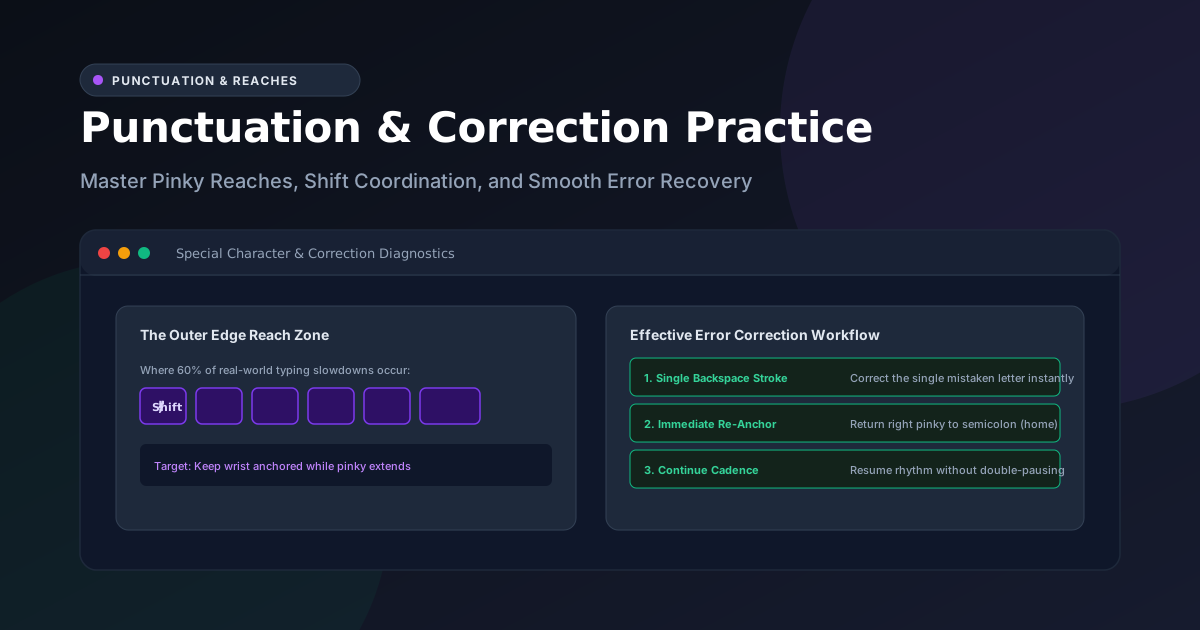
Typing Practice
Free interactive typing practice with real-time WPM, accuracy feedback, and keyboard guide.
Many typists achieve impressive scores on simplified typing tests that only contain common, lowercase English words like the, quick, and brown.
Yet the moment they sit down to draft a real-world document—an email containing email addresses, quotation marks, parentheses, and numbers, or a programming file filled with brackets, semicolons, and hyphens—their typing speed plummets by 30% to 50%.
The reason is simple: lowercase letters represent only a fraction of real-world typing.
True typing fluency depends on mastering the keyboard's outer reach zones: punctuation, capital letters, and efficient Backspace correction. In this guide, you will learn the mechanics of outer finger reach, the fundamental Opposite-Hand Shift Rule, and how to use the UtilityKit Typing Practice tool to conquer symbol hesitations.
The Pinky Reach Problem: The Outer Zone
On a standard QWERTY keyboard, your index and middle fingers handle the central, easiest-to-reach keys (f, j, d, k, r, u). These fingers are strong, agile, and naturally independent.
In contrast, your right pinky is responsible for an extraordinary number of critical characters:
- Semicolon (
;) and Colon (:) - Apostrophe (
') and Quotation Marks (") - Hyphen (
-) and Underscore (_) - Equal sign (
=) and Plus (+) - Forward slash (
/) and Question mark (?) - Square brackets (
[,]) and Braces ({,}) - The Enter key
- The Backspace key!
Because the pinky is anatomically weaker and shares tendons with the ring finger, novice typists frequently lift their entire right hand off the keyboard and float into the upper corner to hit these keys.
When your hand floats away from home row, your fingers lose their spatial landmarks, almost guaranteeing a string of typos upon returning.
Rule 1: The Home Row Anchor & Pinky Pivot
To type punctuation without losing your place:
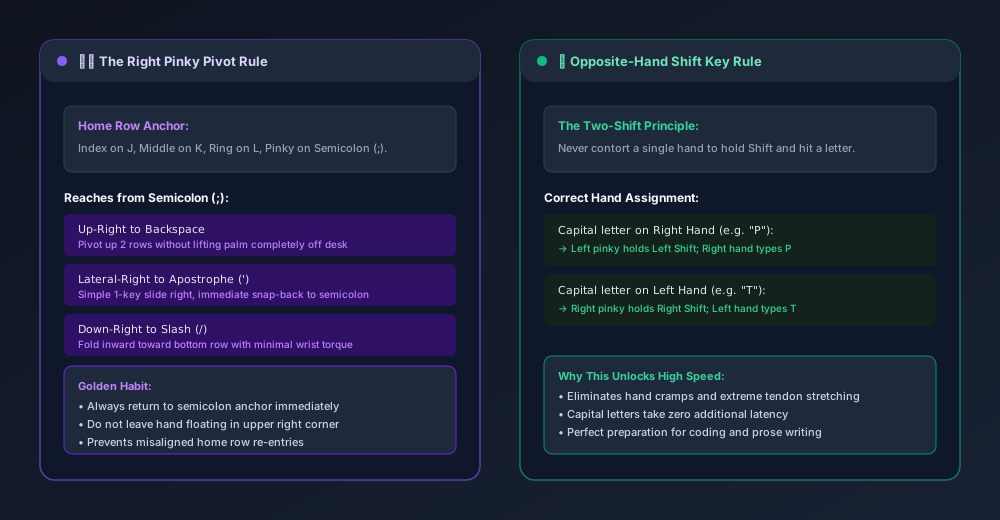
- Keep the J-Key Anchor: Keep your right index finger resting lightly on the
jkey (which has a physical tactile bump on virtually all keyboards). - Pivot, Don't Float: When reaching for an apostrophe, semicolon, or backspace, keep your wrist stable and pivot your pinky outward.
- Immediate Snap-Back: The microsecond your pinky strikes the target key, immediately return it to the semicolon (
;) home key.
[!TIP] Never leave your right hand lingering near the Backspace key. Treating home row as a home base eliminates disorientation and hesitation.
Rule 2: The Opposite-Hand Shift Coordination
One of the most widespread bad habits among self-taught typists is using only one Shift key for all capital letters and symbols.
For example, when typing a capital A, a typist might try to contort their left hand to hold Left Shift with their thumb or palm while reaching for A with their pinky. This causes severe hand cramping, awkward wrist angles, and massive typing delays.
The Standard Rule:
Always press the Shift key with the hand opposite the hand typing the character:
| Target Character | Typing Hand | Required Shift Key |
| P, O, L, K, M, ?, : | Right Hand | Left Shift (Left Pinky) |
| Q, W, E, R, T, A, S, Z | Left Hand | Right Shift (Right Pinky) |
| Double Quotes (`"`) | Right Hand | Left Shift (Left Pinky) |
| Exclamation Mark (`!`) | Left Hand | Right Shift (Right Pinky) |
By distributing the effort across both hands, capital letters can be typed at the exact same velocity as lowercase letters, without awkward finger gymnastics.
Rule 3: Crisp Backspace Recovery
When practicing on the Typing Practice tool, mistakes will happen. The key to maintaining a high Net WPM is how you recover:
The Wrong Way: The Panic Mash
- You type an incorrect character.
- You panic, look down at your hands, and hit Backspace 5 or 6 times in rapid succession, accidentally erasing three perfectly good letters you typed earlier.
- You pause, look up at the screen to see what happened, re-orient your hands, and start over.
- Total time wasted: 3.5 seconds.
The Right Way: The Single Tap Pivot
- As soon as you feel a misstrike, tap Backspace once with a deliberate right-pinky pivot.
- Keep your eyes locked on the active caret on screen.
- Strike the correct key and continue forward without breaking your breathing or rhythm.
- Total time wasted: 0.6 seconds.
Actionable Drills: The Punctuation Workout
To specifically strengthen your outer fingers and punctuation coordination, use Typing Practice with these targeted exercises:
- The Punctuation & Flow Passage: In Typing Practice, use the passage selector to load "Punctuation & Flow" (
Punctuation Focus). This passage is specifically composed with semicolons, commas, em-dashes, quotation marks, and exclamations. - Watch the Visual Keyboard Guide: Observe the interactive keyboard guide beneath the passage. When a punctuation mark is next, notice the highlighted key and verify you are using the correct finger reach.
- Benchmark Your Symbol Speed: Once you feel confident, head over to the Typing Speed Test and choose a 60-second test to see how well your symbol accuracy translates to raw WPM.
Summary
Fluency in real-world writing, communication, and coding demands mastery of punctuation and error correction. By anchoring your home row, practicing opposite-hand shifts, and executing single-tap backspacing, you will transform your typing from hesitant letter-hunting into a smooth, effortless digital craft.
Frequently Asked Questions
Quick answers to common questions for users and search assistants
Why is typing punctuation and symbols so much slower than typing plain letters?
What is the Opposite-Hand Shift Rule?
Should I use Backspace immediately when I make a typing mistake?
Related Utilities Mentioned in This Guide
Browse directoryTyping Practice
Free interactive typing practice with real-time WPM, accuracy feedback, and keyboard guide.
Typing Speed Test
Timed 30s, 60s, and 120s WPM test with countdown clock and instant accuracy scoring.
Text Cleaner
Remove rogue line breaks, extra spaces, odd characters, and formatting clutter.
Continue Reading
A Simple Daily Typing Practice Routine and How to Track Progress
Build lasting keyboard speed with a 15-minute daily typing routine. Learn how to structure warm-ups, deliberate drills, and rolling 7-day benchmark tracking.
How Words Per Minute (WPM) is Calculated in a Typing Test
Discover how typing speed is measured using the 5-character standardized word rule, the difference between Gross and Net WPM, and why time normalization matters.