How to Preview Markdown and Catch Common Formatting Mistakes
Learn the CommonMark and GFM rules that prevent swallowed line breaks, malformed tables, broken task lists, and mismatched code fences.
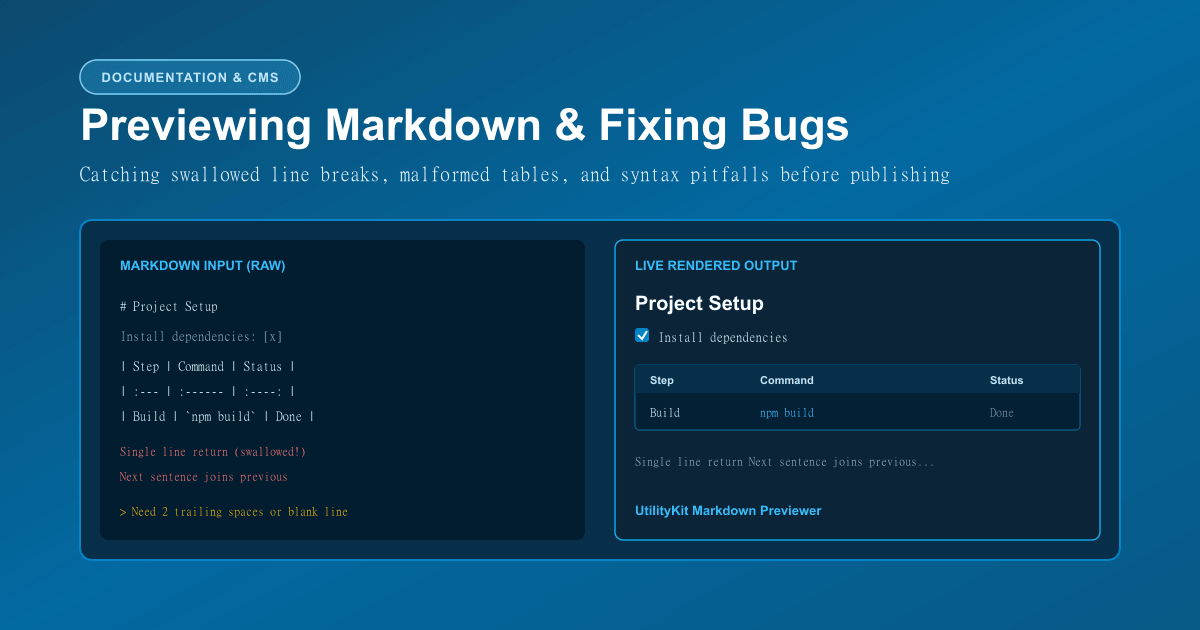
Markdown Previewer
Live browser-rendered Markdown preview with HTML and plain text export.
Markdown has become the ubiquitous language of software documentation, GitHub READMEs, static site generators (Next.js, Astro, Hugo), and headless content management systems. Its minimalist syntax allows writers to format text without lifting their hands from the keyboard.
Yet despite its apparent simplicity, Markdown has sharp edges. Because parsers adhere to strict CommonMark and GitHub-Flavored Markdown (GFM) specifications, intuitive typing habits often yield unexpected results:
- A single
Enterkeypress disappears, merging two distinct thoughts into one run-on sentence. - A table renders as an ugly cluster of raw vertical pipe characters (
|). - A task list displays literal square brackets (
- [ ]) instead of clickable checkboxes. - A code block bleeds into the following section because a backtick fence was misaligned.
In this guide, you will learn the exact parsing mechanics behind common Markdown mistakes, how to write bulletproof tables and lists, and how to use the live dual-pane Markdown Previewer on UtilityKit to inspect your formatting before pushing changes live.
The 4 Most Common Markdown Mistakes (And How to Fix Them)
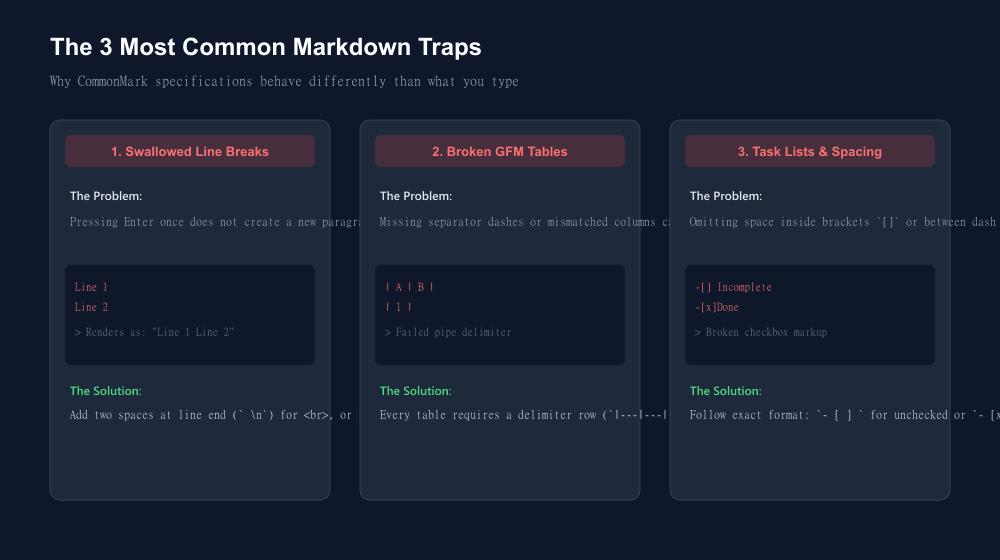
1. The Swallowed Line Break (Soft vs Hard Breaks)
The Mistake:
First line of the address
Second line of the address
City, State, Zip
In your text editor, these look like three separate lines. But when rendered to HTML, CommonMark compiles them into a single line:
<p>First line of the address Second line of the address City, State, Zip</p>Why It Happens:
In print typography and email protocols, paragraphs were historically soft-wrapped at 72 characters. To prevent forced breaks when screens resize, Markdown treats single newlines as soft breaks (spaces).
The Fix:
You have three options:
- Two Trailing Spaces: Add two spaces at the end of the line before pressing
Enter:
First line of the address $\to$ inserts a <br>.
- Backslash: End the line with a trailing backslash (
\):
First line of the address\ $\to$ inserts a <br>.
- Blank Line: Leave an entire empty line between paragraphs to generate separate
<p>tags.
2. Malformed GFM Tables
The Mistake:
| Feature | Supported | Notes |
| Caching | Yes | High speed |
| Logging | No | In roadmap |
This fails to render as a table in 90% of Markdown parsers and appears as raw plain text with pipes.
Why It Happens:
GFM requires an explicit delimiter row separating the header from the body cells. Without it, the parser cannot determine column boundaries or text alignment.
The Fix:
Always include a second row containing at least three hyphens per column:
| Feature | Supported | Notes |
| :------ | :-------: | ----: |
| Caching | Yes       | 15ms  |
| Logging | No | In dev|:---aligns column content to the left.:---:aligns column content to the center.---:aligns column content to the right.
3. Broken Task Lists (Checkboxes)
The Mistake:
-[] Deploy release
-[x] Run unit tests
- [ ]Audit security
Why It Happens:
GFM task lists are strict about whitespace:
- There must be a space after the list marker
-. - For an unchecked box, there must be a literal space between the brackets:
[ ]. - There must be a space after the closing bracket before the text begins.
The Fix:
- [ ] Deploy release
- [x] Run unit tests
- [ ] Audit security
4. Code Block Syntax Tagging & Nesting
The Mistake:
const x = 10; console.log(x);
Omitting the language identifier means syntax highlighters (Prism, Highlight.js, Shiki) cannot colorize keywords, strings, and comments, resulting in dull monospace text.
The Fix:
Always declare the language immediately after the opening backticks:
interface UserProfile { id: string; active: boolean; }
If you need to display Markdown code inside a Markdown document (like this tutorial does), wrap the outer fence with four backticks (``` `` ```) so the parser does not close early!
Live Dual-Pane Previewing Workflow
When working on lengthy documents, switching back and forth between a code editor and a web preview tab breaks your focus.
UtilityKit's Markdown Previewer provides an interactive, split-screen workspace:
- Live Synchronous Parsing: As you type in the left editor pane, the rendered HTML preview updates instantly on the right.
- One-Click HTML Export: Need to paste formatted content into a legacy CMS or newsletter tool? Click the Copy HTML button to grab clean, semantic markup ready for any email template.
- Word & Line Count Diagnostics: Monitor document length, line count, and character density in real time.
- Local File Download: Download your edited document as a clean
.mdfile directly to your machine.
Need Mathematical Rigor or Scientific Papers?
While Markdown is ideal for web documentation and blogs, academic research and scientific theses often require complex equation typesetting and formal citation bibliographies.
If your document outgrows Markdown's capabilities, explore our free browser-based LaTeX Editor and read our guide on how to fix LaTeX compile errors and debug documents fast.
Write and Format Clean Markdown Now
Whether you are updating your project's README.md, preparing a technical blog post, or formatting a changelog, test your syntax in UtilityKit's free Markdown Previewer. Everything runs locally in your browser with zero server uploads and zero lag.
Frequently Asked Questions
Quick answers to common questions for users and search assistants
Why does Markdown ignore my single Enter/Return keypresses?
What is the difference between standard Markdown and GitHub-Flavored Markdown (GFM)?
Why does my Markdown table render as raw text with vertical pipes?
Related Utilities Mentioned in This Guide
Browse directoryMarkdown Previewer
Live browser-rendered Markdown preview with HTML and plain text export.
LaTeX Source Editor
Write, copy, and download .tex files; PDF compilation is temporarily unavailable.
Text Cleaner
Remove rogue line breaks, extra spaces, odd characters, and formatting clutter.
Continue Reading
How to Use Lorem Ipsum to Test Layouts and Catch CSS Text Overflow
Learn why dummy text is essential for UI design, how to stress-test responsive components, and CSS rules to fix text overflow and flexbox blowouts.
How to Fix LaTeX Compile Errors and Debug Documents Fast
Learn to read TeX error logs, find the source line, fix common package and syntax errors, and ask an AI assistant for a corrected document.