How to Fix LaTeX Compile Errors and Debug Documents Fast
Learn to read TeX error logs, find the source line, fix common package and syntax errors, and ask an AI assistant for a corrected document.
Lorem Ipsum Generator
Generate realistic dummy text, placeholder paragraphs, sentences, and words for layouts.
LaTeX is the gold standard for producing professional academic papers, mathematical theses, books, and technical resumes. Its typesetting engine formats equations, cross-references, and typographic ligatures with unmatched precision.
Yet for all its strengths, LaTeX error reporting has changed very little since Donald Knuth designed TeX in the late 1970s. When compilation halts, TeX does not display gentle modern syntax hints; it emits hundreds of lines of terminal output filled with exclamation marks (!), cryptic TeX primitives, and ambiguous line numbers (l.42).
Modern editors make the log easier to inspect, and AI assistants can suggest a fix. This guide shows how to read TeX diagnostics, check common causes, and verify a corrected document. You can draft and export source in UtilityKit's LaTeX Source Editor; PDF compilation is temporarily unavailable there, so use a working local or online compiler for the steps below.
What You Need Before Debugging
You need the complete .tex source and the compiler's output log. Keep the first error message and several lines after it; later errors can be consequences of the first one.
Compile with an editor or service that gives you access to the raw log. If you are working with someone else's generated LaTeX, also record the engine they used and the packages loaded in the preamble. Package and engine differences can explain why a document works in one setup and fails in another.
If the source contains private information, remove it before sharing it with an online compiler or AI assistant.
Anatomizing a LaTeX Error: The Three-Line Rule
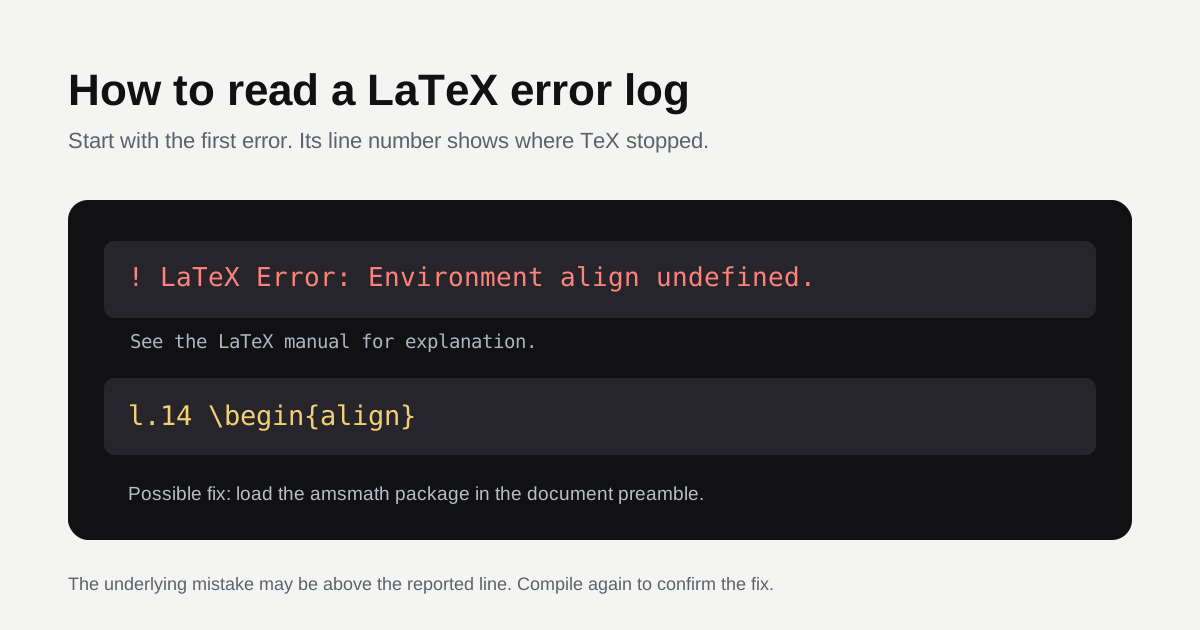
When a LaTeX compiler encounters a fatal issue, it outputs diagnostics following a standard three-part structure:
! LaTeX Error: Environment align undefined.

See the LaTeX manual or LaTeX Companion for explanation.
Type  H <return>  for immediate help.
 ...
l.14 \begin{align}

?
Here is how to decode each part:
- The Diagnostic Message (`!`): The first line starts with an exclamation point and states what condition triggered the failure. Common examples include:
! LaTeX Error: File 'geometry.sty' not found.! Undefined control sequence.! LaTeX Error: Environment align undefined.
- The Help Hint: Standard boilerplates advising you to consult the manual.
- The Line Number Indicator (`l.<num>`): This is the most crucial part of the log.
l.14tells you that the compiler stopped processing at line 14 of your document. The text followingl.14shows the exact macro or token being parsed when the engine crashed.
The reported line tells you where TeX stopped processing. Check that line and the lines just above it: a missing closing brace or environment earlier in the file can trigger an error later.
The 4 Most Common LaTeX Errors (And How to Fix Them)
1. Undefined Math Environments
! LaTeX Error: Environment align undefined.
l.18 \begin{align}- Cause: Environments such as
align,gather,multline, andbmatrixare part of the AMS-LaTeX extensions, not base LaTeX. - Fix: Add the
amsmathpackage to your preamble:
  \usepackage{amsmath}
  \usepackage{amssymb}
2. Unescaped Reserved Special Characters
! Missing $ inserted.
l.22 User_name- Cause: Characters like
%,&,_,$, and#are reserved TeX syntax tokens.%starts a comment,&separates table columns,_triggers subscripts, and$enters math mode. The exact error depends on the character and context. - Fix: Precede them with a backslash to escape them for normal text:
Revenue increased by 25\% across Q1 \& Q2 for user\_name.3. Missing or Unclosed Environment Tags
! LaTeX Error: \begin{itemize} on line 12 ended by \end{document}.- Cause: Every
\begin{env}must have a matching\end{env}before the document terminates or before parent scopes close. - Fix: Audit indentation and close lists or theorem blocks before
\end{document}.
4. Special Characters in URLs or File Names
- Cause: File paths containing underscores or tildes break standard macros.
- Fix: Wrap external links in
\url{...}using\usepackage{hyperref}.
How to Debug LaTeX Using AI in 3 Simple Steps
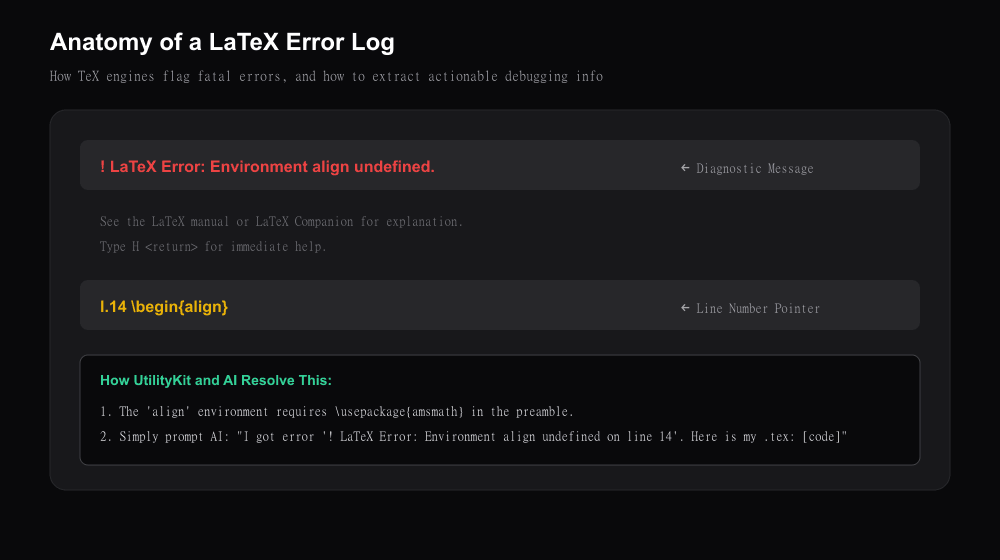
When an unfamiliar error occurs, an AI assistant can help interpret the log. Check its suggested changes by compiling the document again.
Step 1: Copy the Error Log
Open your compiler's log and copy the first error, its line reference, and enough surrounding context to understand it. Avoid sharing private content unless you are comfortable sending it to the AI service.
Step 2: Copy Your Document Source
Copy the relevant source, including the document preamble and the lines around the error. If the document is short, sharing the complete source can make it easier to find mismatched environments.
Step 3: Prompt the AI Assistant
Paste both into your AI assistant with the following prompt template:
I am compiling a LaTeX document and encountered this compilation error:

--- COMPILER LOG ---
! LaTeX Error: Environment align undefined.
l.14 \begin{align}

--- SOURCE CODE ---
\documentclass{article}
\begin{document}
\begin{align}
  a^2 + b^2 = c^2
\end{align}
\end{document}

Please identify the missing package or syntax error, explain why it happened, and return the corrected, complete LaTeX code.
For this example, the likely fix is to add \usepackage{amsmath} in the preamble. Review the suggested source before compiling it again.
Pro-Tip: Rapid Prototyping with Dummy Text
When experimenting with two-column page layouts, font sizes, or document margins, writing actual prose slows you down.
Instead, visit UtilityKit's Lorem Ipsum Generator to generate structured paragraphs, word counts, or sentence blocks to populate your document draft before typesetting your final text.
Verify the Fix
Compile the revised source with the same engine and check both the log and the resulting PDF. Repeat from the first remaining error if compilation still fails. UtilityKit's LaTeX Source Editor can save and export your .tex file, but its PDF compiler is temporarily unavailable.
Frequently Asked Questions
Quick answers to common questions for users and search assistants
What does '! LaTeX Error: Environment align undefined' mean?
How do I find the exact line where my LaTeX document broke?
Can I use AI to fix my LaTeX errors?
Related Utilities Mentioned in This Guide
Browse directoryContinue Reading
Base64 Encoding vs Encryption: Why Obfuscation Is Not Security
Understand the mathematical difference between Base64 data representation and cryptographic encryption, how 6-bit grouping works, and how to encode safely.
Why Temperature Conversion Requires More Than Just Multiplication
Learn the mathematical difference between ratio and interval measurement scales, why temperature requires affine offsets, and how to convert Celsius, Fahrenheit, and Kelvin.