Create a Fillable PDF Free and Keep a Reusable Template
Build a fillable PDF free, without an account. Add fields locally, save a reusable form definition, and collect completed field values into CSV.
Fillable PDF Form Builder
Create interactive fillable PDF forms with text fields, checkboxes, and dropdowns.
A fillable PDF contains interactive fields that a recipient can select and complete. Drawing an empty rectangle on a page is not enough: the exported document needs actual form fields and a successful save-and-reopen test.
Use the free Create Fillable PDF tool to place fields over an existing PDF template or begin from a blank page. Creating and downloading the form does not require an account or payment. For a first form, keep the layout small enough to inspect carefully.
Make a reusable form without a hosted form account
The useful feature here is a workflow you can keep: build the fields in your browser, export the interactive PDF, and save the field definition as JSON for another session. Keep the original template beside that definition so you can return to the same layout later.
Form creation processes the selected PDF locally rather than requiring a document upload to an application server. The site still loads supporting code, hosting, and ad services; local document processing is not a claim of zero tracking. See the privacy policy.
For repeat requests, stable field names give you a second benefit: completed forms can feed into the separate local extraction workflow described below. That is a more useful reason to choose a form builder than simply adding boxes to a page.

Design a short equipment-request form
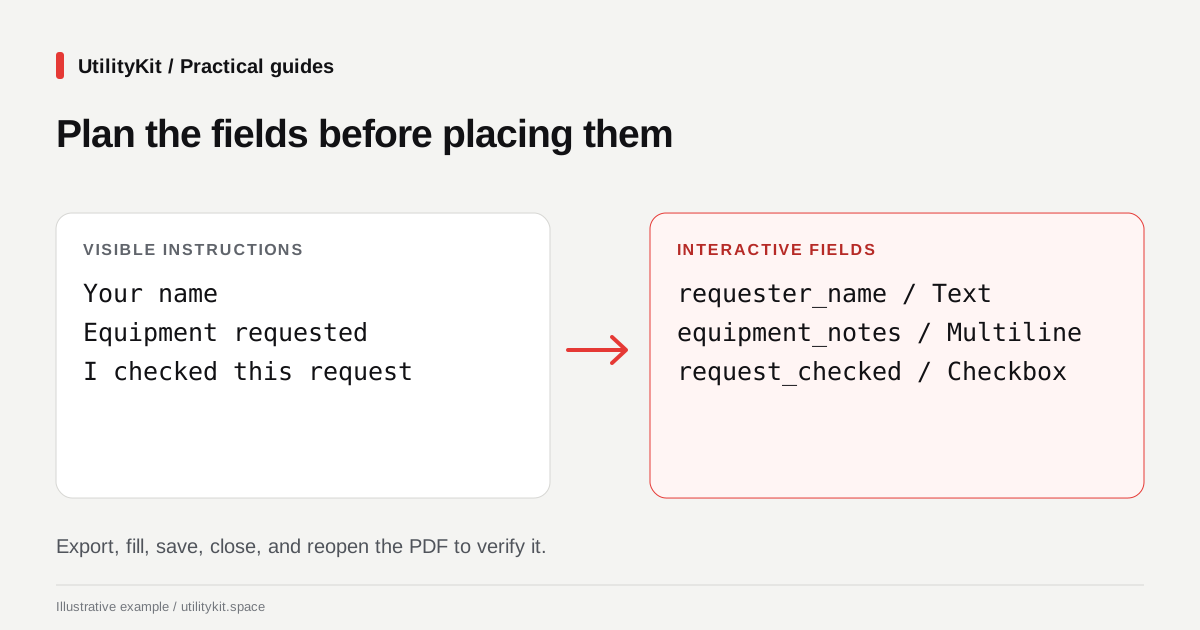
Suppose you need a name, an equipment description, and a checkbox confirming that the request is complete. Plan the fields before placing them:
| Visible instruction on the template | Field name | Field type |
| Your name | requester_name | Text |
| Equipment and quantity requested | equipment_notes | Multiline text |
| I have checked this request | request_checked | Checkbox |
Names should be distinct and meaningful. They help identify responses during later extraction. UtilityKit checks for duplicate field names among the fields you define, including names that differ only by letter case.
Use a template that already contains readable labels and instructions. A field's internal name or editor label should not be your only explanation to the person filling out the PDF. Check the exported page to confirm which labels are actually visible.
Build the fields
- Open Create Fillable PDF.
- Choose Upload Template for an existing layout, or Blank Page to start fresh.
- Add a text field for the name, a multiline field for equipment notes, and a checkbox.
- Give each field a unique name and place it beside its visible instruction.
- Adjust field sizes so realistic answers fit without covering nearby labels.
- Review validation errors and warnings before export.
A source PDF with existing interactive fields needs extra care: new names can conflict with names already in that document. For a simple first workflow, use a template without existing fields.
The builder also offers dropdowns and radio groups. Their choices need explicit text. Start with the smaller form above before adding complicated options or multiple pages.
Preview is a layout check, not the final test
Switch to Respondent Preview and try a short name, a long name, and a note spanning several lines. This reveals cramped fields and confusing instructions.
Preview answers are stored separately from the exported definition. They are not automatically included in the PDF. Likewise, the builder's date and number types currently export as text fields; do not promise automatic format enforcement.
Choose Export Fillable PDF, then Download Fillable PDF. The exporter creates PDF AcroForm fields, the interactive-field system described in pdf-lib's PDFForm documentation.
Run a save-and-reopen check
Open the downloaded PDF in the reader your audience will use. Enter synthetic answers, select the checkbox, save a separate copy, close it, and reopen it.
Confirm that the answers remain, the checkbox state survives, and the text is visible without scrolling past important content. Check keyboard navigation as well as mouse input. A successful browser preview does not prove that every PDF viewer behaves the same way.
Avoid sending the completed test copy as the blank template. Use filenames such as equipment-request-blank.pdf and equipment-request-test.pdf to keep them distinct.
Keep an editable definition
Use Export JSON to save the field definitions for future edits. Keep the source template too; the schema is not a substitute for its page artwork.
Turn completed forms into a spreadsheet
Once respondents have filled and saved their PDF copies, open Bulk PDF to Excel. Its current workflow reads interactive form fields, lets you review and edit the extracted values, and exports a CSV spreadsheet. It is free to use without an account and processes the selected PDFs in the browser.
For the equipment-request example, consistent field names let values from different forms line up under requester_name, equipment_notes, and request_checked. The interface accepts up to 10 documents per batch. Review missing fields and failed files before exporting; successful extraction does not establish that a respondent's answer is correct.
The downloadable spreadsheet is CSV, not a native XLSX workbook. A scanned form or a flattened printout may no longer contain interactive fields, so this workflow is not OCR or general invoice-table recognition. Test the full path with a synthetic completed form before collecting real responses.
An interactive form is not automatically a digital-signature workflow or an accessible document. Test the properties your recipients require separately; see electronic versus digital signatures if signing is part of your process.
Last reviewed: October 28, 2026. The sample form is illustrative; export behavior was checked against the current implementation.
Frequently Asked Questions
Quick answers to common questions for users and search assistants
Will answers entered in Respondent Preview be included in the exported PDF?
Do date and number fields enforce those formats in the exported PDF?
Related Utilities Mentioned in This Guide
Browse directoryFillable PDF Form Builder
Create interactive fillable PDF forms with text fields, checkboxes, and dropdowns.
Bulk PDF Field Extractor
Extract field data from multiple PDF forms and export directly to CSV or Excel.
Convert Images to PDF
Convert JPG, PNG, and WebP images into a single professional PDF document.
Continue Reading
Combine Receipt Photos into a PDF Free in Your Browser
Create an expense PDF from receipt photos free, without an account. Arrange images and generate the document locally, then check every amount.
Electronic Signature vs Digital Signature in PDFs: What You Need to Know
Understand the vital legal and technical differences between simple electronic signatures and cryptographic digital signatures in PDF agreements.