How to Make a Scannable Wi-Fi QR Code for Guests (With Print Best Practices)
Learn the standardized Wi-Fi QR payload schema, network isolation security rules, and print guidelines for homes, offices, and Airbnb rentals.
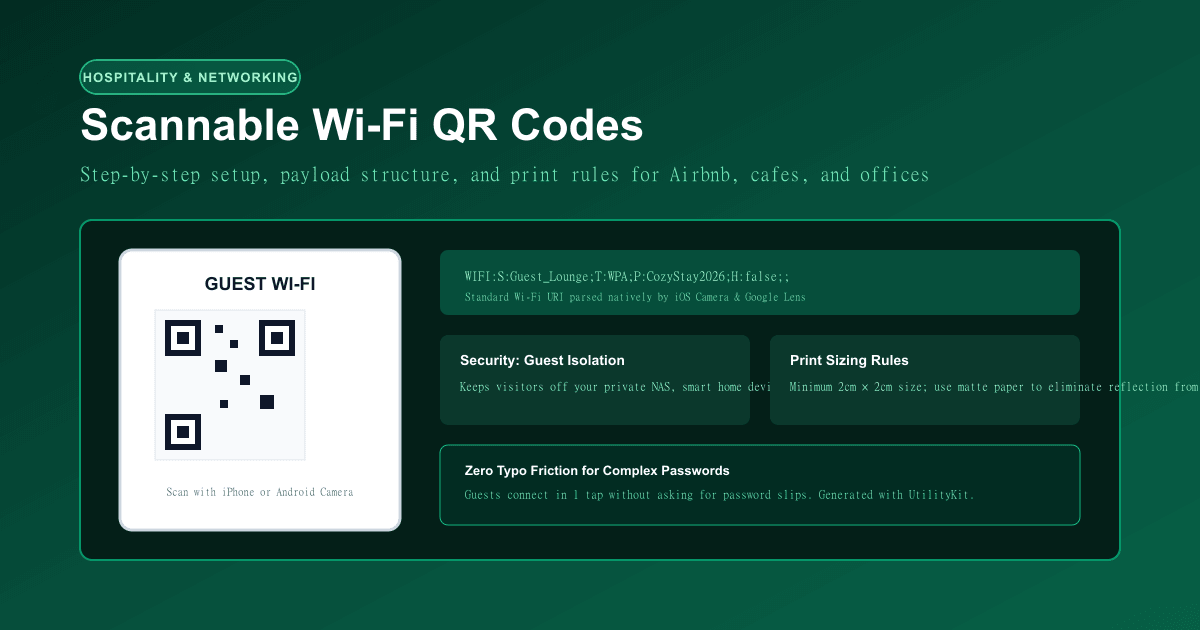
QR Code Generator
Create individual or bulk QR codes and download PNG, SVG, or a ZIP archive.
- 01.How Mobile Devices Connect: The Standardized Wi-Fi Payload
- 02.Network Security Rule #1: Always Use a Segregated Guest VLAN
- 03.5 Rules for Flawless Printing and Scanning
- 04.Step-by-Step: Creating Your Guest Wi-Fi QR Code in UtilityKit
- 05.Need More Barcode Capabilities?
- 06.Create Your Guest Wi-Fi Sign Now
Few hospitality interactions are as tedious as the "Wi-Fi ritual." A friend visits your home, an Airbnb guest checks into your vacation rental, or a client arrives at your office, and the conversation inevitably begins:
"What's the Wi-Fi password?" "It's `T3mp@ss#99!`... wait, with a capital T, and the zero is actually an uppercase O..."
Five minutes later, they are still struggling to type the password correctly on a touchscreen keyboard. In frustration, many hosts set dangerously simple passwords like guest1234—leaving their network vulnerable to nearby intruders.
The solution is a scannable Wi-Fi QR code. With a single scan from their phone's native camera, visitors connect instantly in one tap—even with an ultra-secure 32-character randomized password.
In this guide, you will learn the standardized Wi-Fi string syntax, crucial network isolation rules, physical printing specs, and how to create your code using the UtilityKit QR Code Generator.
How Mobile Devices Connect: The Standardized Wi-Fi Payload
A Wi-Fi QR code is not a proprietary link to a server or web page. It is a standard URI string encoded into a 2D matrix:
WIFI:S:Guest_Lounge;T:WPA;P:CozyStay2026;H:false;;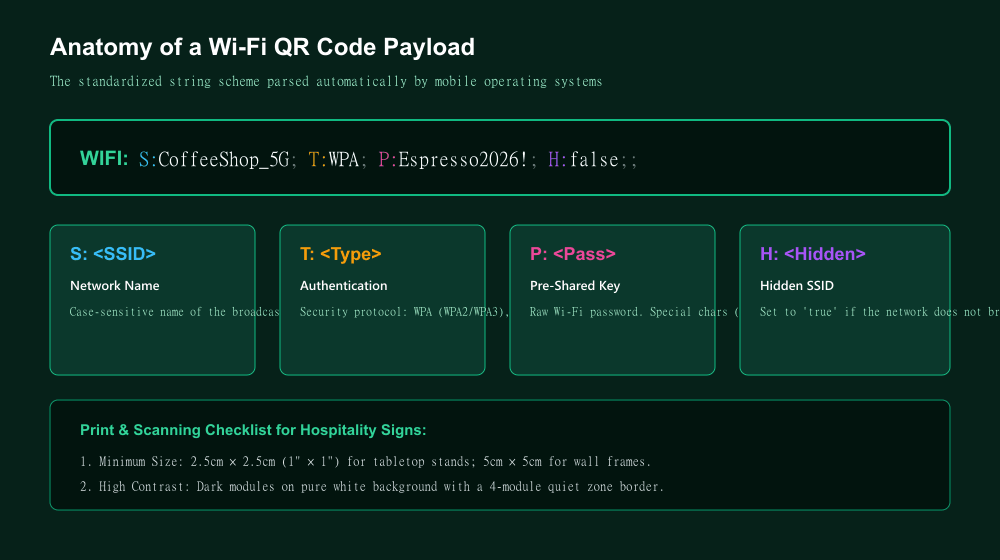
When an iPhone Camera or Android Google Lens scans this barcode, the operating system recognizes the WIFI: protocol prefix and parses the semicolon-delimited parameters:
- `S:<SSID>` (Service Set Identifier): The exact, case-sensitive name of your Wi-Fi network. If your network is named
Cabin_Guest_5G, enteringcabin_guest_5gwill fail. - `T:<Authentication Type>`: The security protocol used by your router:
WPA: Covers modern WPA, WPA2-PSK (AES), and WPA3-Personal networks (the standard for virtually all modern routers).WEP: Legacy protocol from the 1990s (insecure and obsolete).nopass: An open, unencrypted network with no password.
- `P:<Password>`: The pre-shared network key.
Note on Special Characters: If your Wi-Fi password contains colons (;), backslashes (\), commas (,), or double quotes ("), standard parsers require escaping them with a leading backslash (for example,P:Pass\;word). UtilityKit's QR Code Generator handles character escaping automatically.
- `H:<Hidden>`: Set to
trueif your router does not broadcast its SSID beacon, orfalsefor standard visible networks. - Double Semicolon (`;;`): Marks the formal end of the Wi-Fi descriptor block.
Network Security Rule #1: Always Use a Segregated Guest VLAN
Before printing a QR code on your living room wall or reception desk, review your router's administration panel:
- The Danger of Sharing Your Primary Network: If visitors join your primary Wi-Fi network, their laptops and phones share the same local area network (LAN) as your personal laptops, smart TVs, security cameras, and network-attached storage (NAS) backup drives. If a guest connects with an infected device, malware can scan your internal subnet.
- The Best Practice: Enable your router's dedicated Guest Network feature (often found under Guest Zone or VLAN Settings). A guest network gives visitors access to the internet while enforcing client isolation—meaning guests cannot communicate with each other or access any of your private household devices.
With a dedicated guest network, you can generate a strong, random 20-character password using our Password Generator without worrying about memorizing it!
5 Rules for Flawless Printing and Scanning
A QR code on your phone screen is easy to scan, but printed signage introduces physical variables like room lighting, distance, and paper glare. Follow these rules for reliable scanning:
1. Minimum Physical Print Dimensions
- Tabletop Signs (Acrylic Stands on Desks / Nightstands): Minimum $3\text{ cm} \times 3\text{ cm}$ ($1.2\text{ in} \times 1.2\text{ in}$).
- Wall Frames (Near Entrances / Hallways): Minimum $6\text{ cm} \times 6\text{ cm}$ ($2.4\text{ in} \times 2.4\text{ in}$) so visitors do not have to lean awkwardly across furniture.
2. Choose Matte Paper Over Glossy
Glossy photo paper and cheap reflective laminate pouches reflect bright overhead spotlights and window daylight directly into phone camera lenses, causing optical washout. Use matte cardstock or non-glare acrylic stands.
3. Respect the 4-Module Quiet Zone
Every QR code requires a clear white border at least four modules wide surrounding the exterior corners. Never crop artwork directly against the edge of the corner squares, as camera edge detection algorithms rely on this margin to detect barcode boundaries.
4. Maintain High Color Contrast
Stick with high-contrast color combinations: black or deep navy modules on a clean white background. Inverted codes (white modules on a black background) often fail on budget smartphone cameras.
5. Display the Plaintext Backup
Always print the network name and password in small, clean text directly below the QR code. If an older laptop or legacy device lacks a camera, visitors can still type the credentials manually.
Step-by-Step: Creating Your Guest Wi-Fi QR Code in UtilityKit
- Navigate to the free QR Code Generator.
- Select the Wi-Fi tab.
- Enter your Network Name (SSID) exactly as it appears in your router settings.
- Select your Encryption Type (choose
WPA / WPA2 / WPA3for standard password-protected routers). - Enter your Password.
- Check Hidden Network only if your router's SSID broadcast is turned off.
- Set Error Correction to Level M (15%) or Level H (30%) if you plan to print outdoor signs subject to wear.
- Download the high-resolution PNG file and print your sign.
Need More Barcode Capabilities?
If you are interested in barcode matrix mechanics, data redundancy, and how QR codes remain readable even when partially torn or obstructed, read our in-depth technical analysis on QR code error correction levels and payload formats.
Create Your Guest Wi-Fi Sign Now
Delight your houseguests, office visitors, and rental clients with instant connectivity. Head over to the UtilityKit QR Code Generator to create, customize, and download your free Wi-Fi QR code in under 30 seconds.
Frequently Asked Questions
Quick answers to common questions for users and search assistants
Does scanning a Wi-Fi QR code work on both iPhone and Android?
Is it safe to display a Wi-Fi QR code on an office or rental sign?
Why does my printed Wi-Fi QR code fail to scan under indoor lighting?
Related Utilities Mentioned in This Guide
Browse directoryQR Code Generator
Create individual or bulk QR codes and download PNG, SVG, or a ZIP archive.
Password Generator
Generate strong, unbiased random passwords with customizable length and character sets.
Unit Converter
Convert length, mass, temperature, area, speed, and volume units instantly with precision.
Continue Reading
How Password Entropy and Modulo Bias Affect Password Security
Learn the mathematics of password entropy, why passphrase length beats complex symbols, and how modulo bias undermines random generators.
QR Code Error Correction and Payload Formats Explained
Learn how Reed-Solomon error correction keeps damaged QR codes readable, how to format Wi-Fi, vCard, and URL payloads, and scan-reliability rules.